

Introduction
If you’ve worked with Microsoft Intune for any length of time, you’ve probably written your fair share of PowerShell scripts to manage registry settings. Detection script here, remediation script there, rinse and repeat for every configuration you need to deploy. There’s other ways to do it too, like platform scripts or wrapping as Win32 apps, but Remediations are good for catching drift and tracking records.
Remediations used to be named “Proactive Remediations” until around 2023, when it was moved from being buried deep under Reports and Endpoint Analytics into a more logical location in the Intune Portal to Devices -> Scripts and remediations.
License-wise it requires Windows Enterprise E3 or E5 (or Education A3 or A5) which is included in the Microsoft 365 F3, E3, and E5 subscriptions. M365 Business Premium unfortunately is stuck in a “limbo” because while Endpoint Analytics is included in the bundled Intune Plan 1, only Windows Pro is included for the OS. That means you’d have to upgrade to Windows Enterprise licenses to be entirely compliant on Remediations. Azure Virtual Desktop (VDA) per user licenses also work.
Tools like REG2PS have existed for years to help convert registry exports to PowerShell – and honestly they’re great for quick one-off scripts. But when you’re managing dozens of registry configurations across an organization, something structured might benefit you.
What Triggered This
A few things came together that made me want to build something better.
First, I was working with Microsoft Global Secure Access and discovered that many of its client settings aren’t available in the Intune Settings Catalog or as ADMX-backed policies. You have to configure them via registry – things like hiding the disable button, restricting non-privileged users, or disabling QUIC in browsers. That meant writing detection and remediation scripts from scratch.
Even one of the core requirements has to be set through the registry – preferring IPv4 over IPv6. This is – I admit – part of the installation script and guidance from Microsoft. But it’s even better to keep track of it through a Remediation script.
Second, I came across Martin Bengtsson’s work at imab.dk on registry management through Intune. His approach was very clever and well-documented. It got me thinking about how to take it further – specifically around separating configuration from code, adding rollback capability, and handling user profiles more elegantly.
The result is the Little Engine That Could … The Registry Configuration Engine.
The Problem with Traditional Registry Scripts
Here’s what a typical Intune remediation script looks like for setting a simple registry value:
# Detection Script
$Path = "HKLM:\SOFTWARE\Policies\Microsoft\Edge"
$Name = "HomepageLocation"
$ExpectedValue = "https://intranet.contoso.com"

try {
    $CurrentValue = Get-ItemPropertyValue -Path $Path -Name $Name -ErrorAction Stop
    if ($CurrentValue -eq $ExpectedValue) {
        Write-Host "Compliant"
        exit 0
    }
} catch {}
Write-Host "Non-Compliant"
exit 1
Now multiply that by every registry setting you need to manage. Then add user-scope settings that need to enumerate all profiles. Then add Default User support for new profiles. The scripts quickly become unwieldy.
The bigger issue? The configuration is embedded in the code. Want to change a URL? You’re editing PowerShell. Want to audit what’s deployed? You’re reading through scripts. Want to roll back a change that broke something? Good luck.
A Different Approach
The Registry Configuration Engine flips this around. Instead of embedding configuration in scripts, you define your settings in a JSON file:
{
  "version": "1.0",
  "description": "Edge enterprise configuration",
  "settings": [
    {
      "name": "Edge Homepage",
      "scope": "Machine",
      "path": "SOFTWARE\\Policies\\Microsoft\\Edge",
      "action": "Set",
      "values": [
        { "name": "HomepageLocation", "type": "String", "data": "https://intranet.contoso.com" },
        { "name": "ShowHomeButton", "type": "DWord", "data": 1 }
      ]
    }
  ]
}
The engine handles all the complexity — registry access, user profile enumeration, Default User hive loading, transaction logging, and proper exit codes for Intune. You just describe what you want.
Key Features
Three scopes, one config: Machine (HKLM), User (all existing profiles), and DefaultUser (template for new profiles) are all supported. The engine handles the HKU enumeration and NTUSER.DAT loading automatically.
Transaction logging with rollback: Every change is logged to C:\ProgramData\RegistryConfigEngine\Transactions\. Made a mistake during testing? Roll it back with a single command.
Flexible detection logic: Beyond simple equality checks, you can use comparison operators like GreaterThanOrEqual (for version baselines), Contains (for URL validation), or NotExists (to ensure legacy settings are removed).
Self-contained Intune packages: Run New-IntunePackage.ps1 and get detection and remediation scripts with everything embedded – ready to upload to Intune.
URL-based configurations: Host your JSON configs in Azure Blob Storage (with SAS tokens) and update them centrally without redeploying scripts to Intune.
Dynamic variables: Use placeholders like {{DATE}}, {{COMPUTERNAME}}, or {{ENGINEVERSION}} that expand at runtime. Useful for stamping when a device was configured.
Quick Start
- Create your configuration (or use one of the 14 samples included):
{
  "version": "1.0",
  "settings": [
    {
      "scope": "Machine",
      "path": "SOFTWARE\\Contoso\\Baseline",
      "action": "Set",
      "values": [
        { "name": "Configured", "type": "DWord", "data": 1 },
        { "name": "ConfigDate", "type": "String", "data": "{{DATE}}" }
      ]
    }
  ]
}- Test locally:
# Check compliance
.\Invoke-RegistryConfigEngine.ps1 -ConfigPath ".\my-config.json" -Mode Detect

# Preview changes
.\Invoke-RegistryConfigEngine.ps1 -ConfigPath ".\my-config.json" -Mode Remediate -WhatIf

# Apply changes - with EventLogging if needed
.\Invoke-RegistryConfigEngine.ps1 -ConfigPath ".\my-config.json" -Mode Remediate -CreateEventLog- Package for Intune:
.\New-IntunePackage.ps1 -ConfigPath ".\my-config.json" -OutputPath ".\Packages"This generates my-config-Detect.ps1 and my-config-Remediate.ps1 — upload these to Intune as a Remediation script package.
Two other useful parameters are Prefix and CreateEventLog. The former lets you .. well, add the prefix. For instance using “PreferIPv4” with the result being “PreferIPv4-Detect.ps1” and “PreferIPv4-Remediate.ps1” scripts.
.\New-IntunePackage.ps1 -ConfigPath ".\Configs\08-prefer-ipv4.json" -Prefix "PreferIPv4".\New-IntunePackage.ps1 -ConfigPath ".\Configs\08-prefer-ipv4.json" -Prefix "PreferIPv4" -CreateEventLogThe latter enables Windows Event Log integration, writing entries to the Application log under the source ‘RegistryConfigEngine’ – handy for troubleshooting and auditing
Sample Configurations Included
The repository includes ready-to-use configurations for common scenarios:
- Corporate branding – stamp machines with your org identity
- Microsoft Edge policies – homepage, security settings, sync behavior
- OneDrive KFM – Known Folder Move configuration
- Windows Explorer – show file extensions, hide recent files
- Global Secure Access – production and developer variants
- Adobe Reader/Acrobat hardening – based on NSA/DoD guidance
- IPv4 preference – required for Global Secure Access
Each one demonstrates different capabilities — binary values, user scope, DefaultUser, comparison operators, delete actions, and more.
When to Use This (and When Not To)
This tool fills a specific gap: registry settings that aren’t covered by Intune’s Settings Catalog or ADMX-backed policies, but still need proper management.
Good fit:
- Custom application settings
- Legacy app configurations
- Corporate branding/baseline stamps
- Settings that need flexible detection logic
- Scenarios requiring rollback capability
Consider alternatives:
- If Settings Catalog covers it, use that instead
- For complex application deployments, Win32 apps might be better
- Group Policy preferences still work for hybrid-joined devices
For example – the OneDrive KFM scripts could be better implemented through Settings Catalog. But since its registry keys are so well documented, it’s a great example of multi-key configuration.
Get It
The Registry Configuration Engine is available on GitHub:
→ github.com/haakonwibe/registry-configuration-engine-v1
It’s MIT licensed and ready to use (at your own risk!). Clone it, try the sample configs, and let me know what you think.
Screenshots
Here are various screenshots from application usage

Invoke-RegistryConfigEngine.ps1 during development with -Mode Detect and -Mode Remediate -WhatIf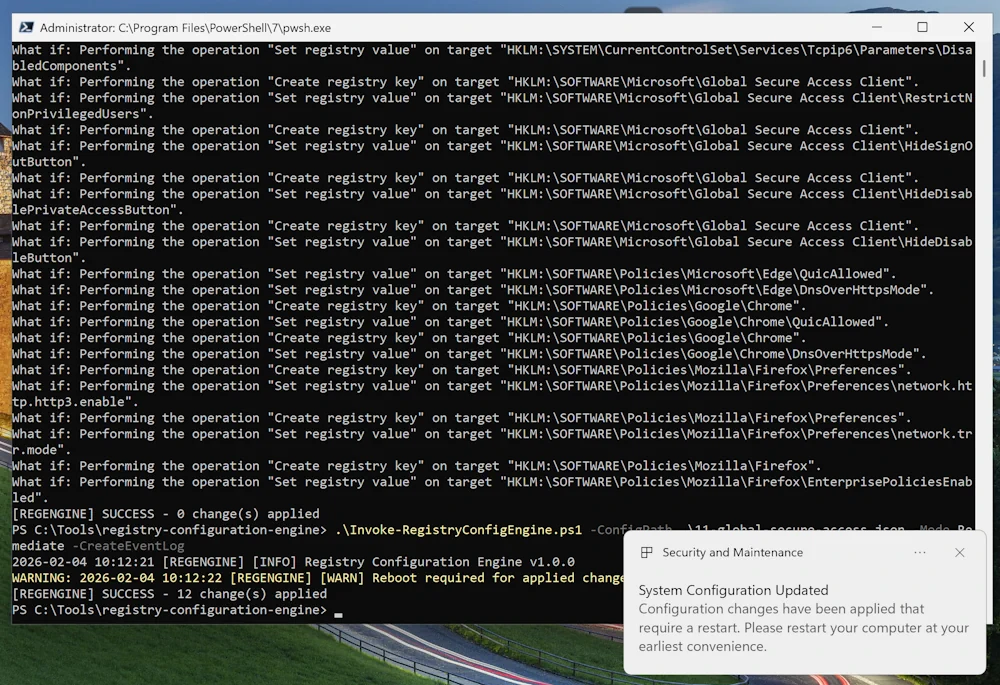
rebootRequired flag set. A Toast Notification is then shown prompting them to restart
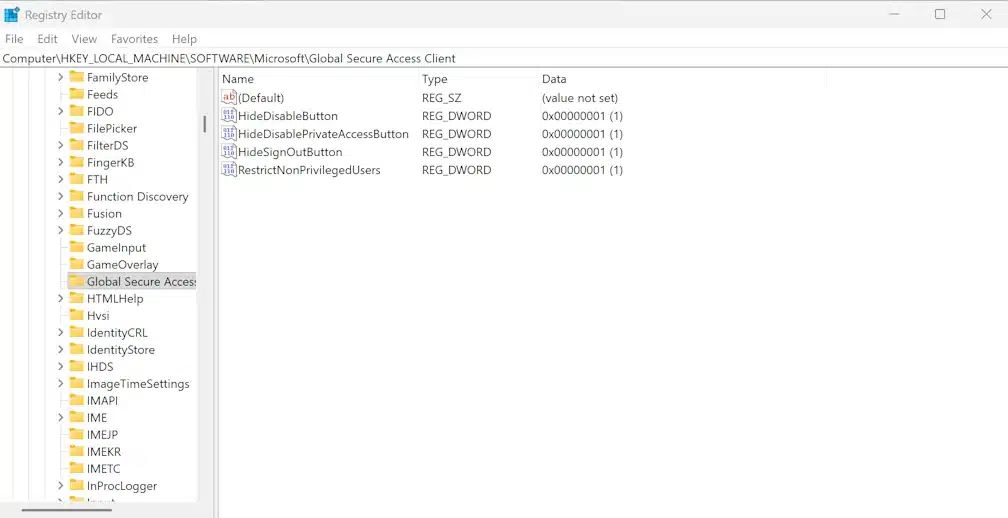
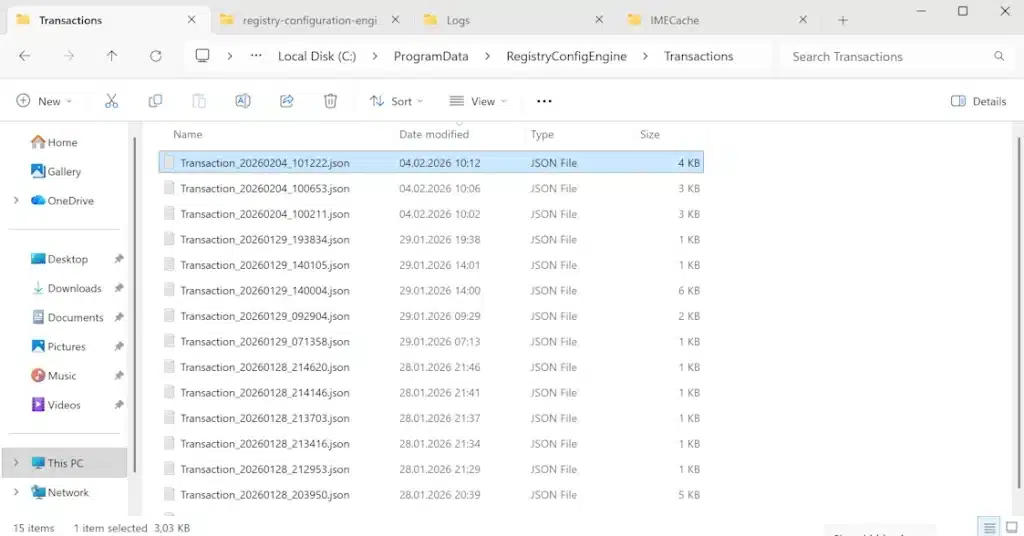
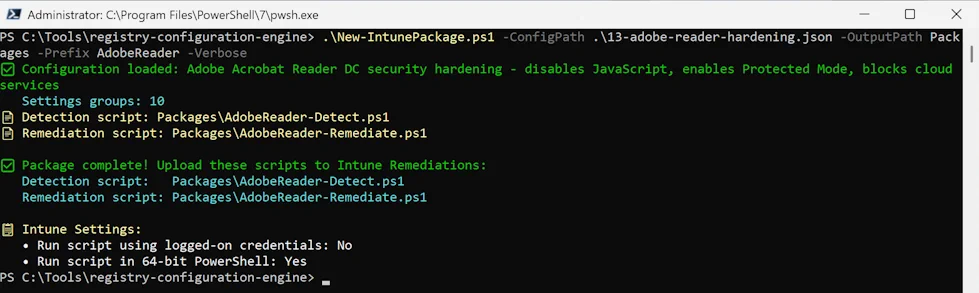
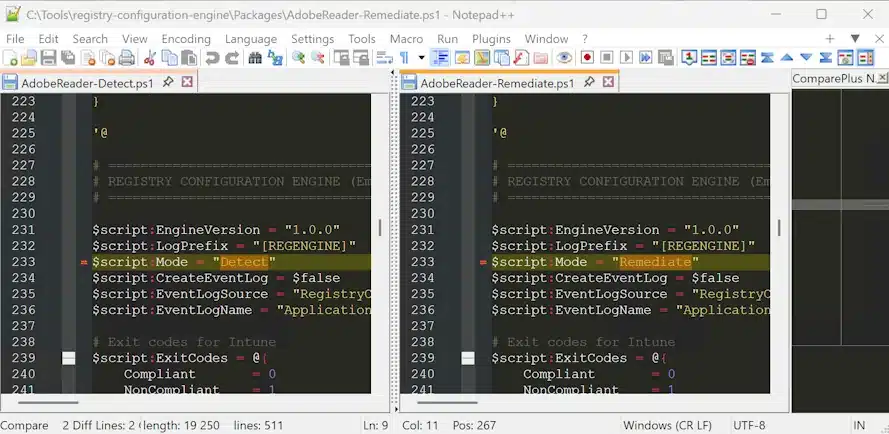
Mode being Detect or Remediate
HealthScripts.log showing what’s going on as wellWhat’s Next?
I’m considering a few additions based on how this gets used:
- Prerequisite checks (verify an app is installed before configuring it)
- Enhanced toast notifications with action buttons
- URL-based config integrity verification
If you have ideas or run into issues, open an issue on GitHub or drop a comment below.
What’s your current approach to registry management in Intune? Are you using embedded scripts, Settings Catalog, or something else entirely?