
In my last post on passkeys, I wrapped up with a cautious prediction: the replacement for passwords might actually stick this time.
Fast forward to today, and we don’t really have a choice anymore. NIST updated its guidelines (they call it “syncable authenticators” in the publication, but they’re basically talking about passkeys), adoption has skyrocketed, and now Microsoft is forcing one of the biggest authentication shifts in recent Entra ID history. Starting next month—March 2026—Microsoft is auto-enabling passkey profiles across all Entra ID tenants.
We all know how much fun it is when Microsoft decides to silently change our default tenant configurations. If you manage identities in a Microsoft 365 environment, you have exactly a few weeks to get out in front of this before Microsoft makes your passkey decisions for you.
A note on registration and CA policies:
I've heard from people struggling to register passkeys from non-compliant i.e. personal devices, that it can be a bit of a bummer when you actually do have proper restrictions already in place.
The flow gets blocked because of this (also on MAM / App Protection).
Nathan McNulty has written an excellent post on improving this, even has some practical workarounds here.
What’s Actually Happening
Microsoft published Message Center notification MC1221452, and the timeline looks like this:
- Early March 2026: GA rollout begins — tenants can opt in to passkey profiles
- Early April – Late May 2026: Tenants that haven’t opted in get automatically migrated
- Government clouds (GCC, GCC High, DoD): Automatic migration from June 2026
If you haven’t looked at your FIDO2 settings in a while, now’s the time.
What Are Passkey Profiles?
Until now, Entra ID managed passkeys (FIDO2) as a single tenant-wide policy. You could enable or disable FIDO2, configure key restrictions, and target user groups — but everything lived under one configuration.
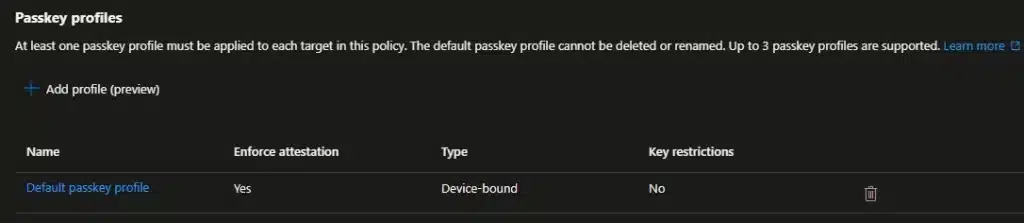
Passkey profiles change that. They introduce group-based configuration with up to three profiles (Microsoft plans to support more later), each with its own rules for:
- Target types: Device-bound passkeys, synced passkeys, or both
- Attestation enforcement: Whether passkeys must cryptographically prove their make and model during registration
- AAGUID restrictions: Which specific security key models or passkey providers are allowed or blocked
So now you can require device-bound passkeys with attestation for your admins, while allowing synced passkeys for frontline workers on shared devices — within the same tenant. That’s a welcome improvement over the all-or-nothing approach we had before.
Device-Bound vs. Synced Passkeys
This distinction is at the core of what’s changing, so it’s worth getting right.
Device-bound passkeys keep the private key on a single physical device. It never leaves. FIDO2 security keys, Windows Hello for Business, and device-bound passkeys in Microsoft Authenticator all fall into this category. These are the “traditional” FIDO2 credentials many enterprises have been running.
Synced passkeys store the private key in a passkey provider’s cloud — Apple iCloud Keychain, Google Password Manager, or third-party managers like 1Password and Bitwarden. The key is encrypted and synced across the user’s devices, so they don’t have to re-register on every machine they touch.
Both types are phishing-resistant. Both eliminate passwords from the flow. The trade-off is in assurance vs. convenience:
- Synced passkeys don’t support attestation in Entra ID. If you enforce attestation on a profile, synced passkeys are automatically excluded.
- Device-bound passkeys give you stronger guarantees about where the key lives, but they’re less convenient for users who switch devices a lot.
Microsoft’s own recommendation — from the synced passkeys FAQ — is straightforward: use device-bound passkeys for admins and highly privileged users, synced passkeys for everyone else.
Browser and OS Support for Passkeys in Entra ID
Almost every browser supports it now:
| OS | Chrome | Edge | Firefox | Safari |
|---|---|---|---|---|
| Windows | ✅ | ✅ | ✅ | N/A |
| macOS | ✅ | ✅ | ✅ | ✅ |
| ChromeOS | ✅ | N/A | N/A | N/A |
| Linux | ✅ | ✅ | ✅ | N/A |
| iOS | ✅ | ✅ | ✅ | ✅ |
| Android | ✅ | ✅ | ❌ | N/A |
The only real gap is Firefox on Android – it doesn’t work (yet). NFC and BLE security key support also varies by platform. Full details in Microsoft’s documentation.
Synced Passkey Provider Support
And not all providers work on all platforms. Here’s the current matrix from Microsoft’s documentation:
| Passkey Provider | Windows | macOS | iOS | Android |
|---|---|---|---|---|
| Apple Passwords (iCloud Keychain) | N/A | Built-in (macOS 13+) | Built-in (iOS 16+) | N/A |
| Google Password Manager | Built in to Chrome | Built in to Chrome | Built in to Chrome (iOS 17+) | Built-in (Android 9+, excl. Samsung) |
| Other providers (1Password, Bitwarden, etc.) | Check for browser extension | Check for browser extension | Check for app (iOS 17+) | Check for app (Android 14+) |
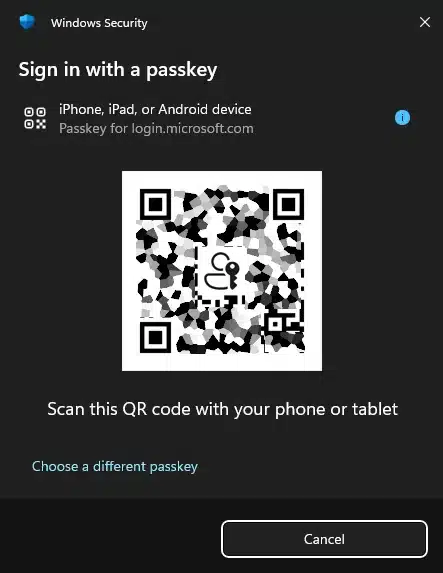
A note on that “N/A” for Apple on Windows — it confused me at first too. This table covers where passkeys can be natively stored and managed. iCloud Keychain doesn’t run on Windows. But cross-device authentication — scanning a QR code on your iPhone to sign in on a Windows browser — works just fine regardless, as the table further above shows. That’s a CTAP2 hybrid transport flow, not native provider support.
What Happens If You Do Nothing
If you don’t opt in before the automatic migration window, here’s what Microsoft does:
- Your existing FIDO2 config moves into a Default passkey profile
- The
passkeyTypegets set based on your current attestation:- Attestation enforced → device-bound only
- Attestation not enforced → both device-bound and synced
- Existing key restrictions and user targeting are preserved
- If synced passkeys are enabled and your registration campaign is Microsoft-managed:
- Target method shifts from Microsoft Authenticator to passkeys
- Default targeting expands to all MFA-capable users (not just voice/SMS users)
- Snooze settings change to unlimited snoozes with a daily reminder
That last point is the one I’d pay closest attention to. If you have a Microsoft-managed campaign running today that targets Authenticator, it will quietly switch to targeting passkeys after migration. That might be fine — or it might flood your helpdesk with confused users wondering why they’re being asked to set up something new.

What Should You Do Before March
1. Check What You Have Today
In the Entra admin center:
Entra ID → Security → Authentication methods → Policies → Passkey (FIDO2)
Look at: Is the method enabled? For which groups? Is attestation enforced? Which AAGUIDs are in your allow-list? What does your registration campaign look like?
You can also pull this via Graph:
GET https://graph.microsoft.com/v1.0/policies/authenticationMethodsPolicy2. Make Some Decisions
Before the profiles land, decide deliberately:
- Will you allow synced passkeys? For which groups?
- Should admins be restricted to device-bound? Microsoft says yes.
- Which providers do you want to support? If you’re using an enterprise password manager like Keeper, Bitwarden or 1Password, you’ll want their AAGUIDs in your allow-list.
- Attestation — yes or no? Enforcing it automatically excludes synced passkeys from that profile.
PS: A community driven list of various providers AAGUIDs can be found here (GitHub link here)
3. Opt In Early
Rather than waiting for Microsoft to migrate you, opt in during the initial GA rollout in early March. That way you control how profiles are configured instead of inheriting whatever defaults Microsoft applies.
Worth noting: opting in to passkey profiles and enabling passkeys are two separate things. You can opt in, configure your profiles exactly how you want them, and keep the method’s state set to Off (or the registration campaign disabled) until you’re fully ready. That way your configuration is locked in before the automatic migration window — and Microsoft won’t overwrite it with defaults.
- Navigate to Entra ID → Security → Authentication methods → Policies
- Select Passkey (FIDO2)
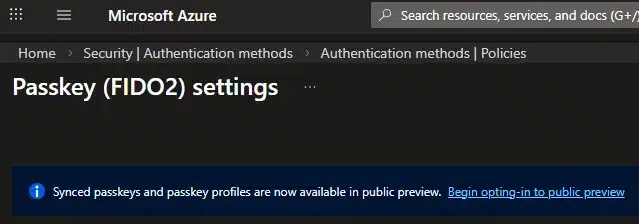
- Select Opt-in to public preview on the banner (transitions to GA opt-in)
- Configure your Default passkey profile
- Create additional profiles for specific groups if needed
4. Sort Out Your Registration Campaign
If you’re running a Microsoft-managed registration campaign today, decide whether you want it to shift to passkeys or stay on Authenticator. If you want to keep targeting Authenticator, you’ll need to manually set the campaign target after migration — or disable the managed campaign and run your own.
5. Tell Your Users
This always gets deprioritized, and it always causes tickets. If synced passkeys suddenly become available and users start getting registration prompts they weren’t expecting, you’re going to hear about it. A short internal announcement on your Viva Engage community of choice explaining what passkeys are and why they’re showing up goes a long way. Updated onboarding docs help too.
The Bigger Picture
This change isn’t happening in isolation. The whole industry is converging on passkeys as the standard:
- NIST SP 800-63-4 (finalized August 2025, 3-4 months after my last post) now requires that MFA offer a phishing-resistant option at AAL2. Synced passkeys qualify.
- Microsoft made passkeys the default sign-in for new Microsoft accounts in May 2025, and reports nearly a million passkey registrations per day.
- Apple introduced passkey portability in iOS 26, allowing credential export to third-party managers through the Credential Exchange standard.
- 69% of users now have at least one passkey, with a 93% login success rate vs. 63% for traditional auth.
The password’s decline is no longer theoretical. And with Microsoft auto-enabling passkey infrastructure in enterprise tenants, it’s becoming a default rather than something you opt into.
How Profile Evaluation Works
This is actually simpler than it looks. Microsoft’s documentation puts it clearly: when a user is scoped for multiple passkey profiles, registration and authentication is allowed if the passkey fully satisfies any one of the scoped profiles. There’s no priority order between them. If it matches one profile, it’s allowed.
That’s it. No complex precedence rules, no “most restrictive wins” logic. If anything, it’s the opposite — the least restrictive matching profile wins, because satisfying any single profile is enough.
The one exception is the Exclude tab, which overrides everything. If a user is in an excluded group, they’re blocked from FIDO2 passkey registration and sign-in entirely, regardless of what profiles they’re scoped for.
A Practical Example
Here’s a setup I put together to illustrate. Three profiles on the Configure tab:
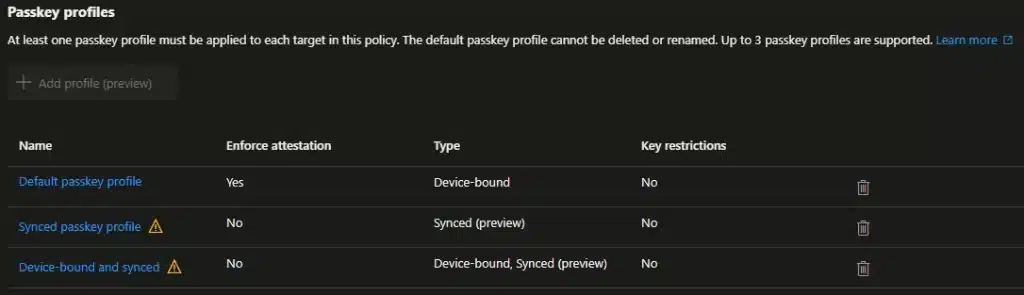
- Default passkey profile: Attestation enforced, device-bound only
- Synced passkey profile: No attestation, synced only
- Device-bound and synced: No attestation, both types
And the group assignments on the Enable and target tab:
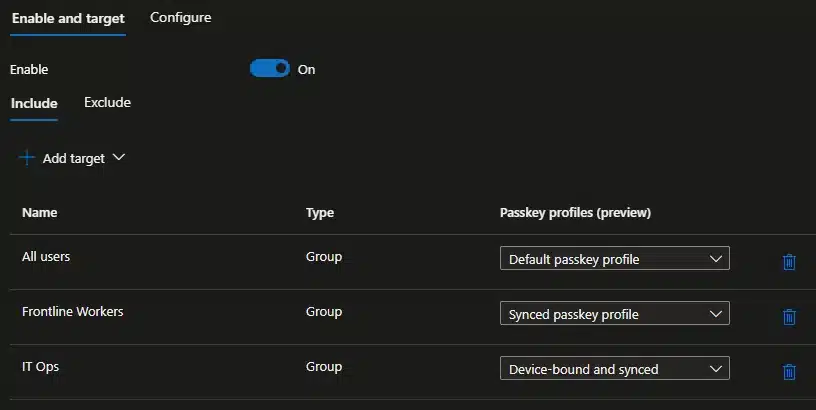
- All users → Default passkey profile
- Frontline Workers → Synced passkey profile
- IT Ops → Device-bound and synced
Since every user falls under “All users,” they all get the Default profile. The additional profiles just expand what specific groups can do:
- Regular users and admins: Only matched by the Default profile. Restricted to attested, device-bound passkeys. Admins don’t get a second profile, so they stay on the strictest posture.
- Frontline Workers: Matched by Default and the Synced profile. A passkey that satisfies either one works — so they can use an attested device-bound key or a synced passkey. Practical for shared workstations and BYOD.
- IT Ops: Matched by Default and Device-bound and synced. They get the full range — attested device-bound, unattested device-bound, and synced — which is what they need to test and troubleshoot what their users will encounter.
The important thing to remember: additional profiles can only open up more options, never restrict. You can’t layer a stricter profile on top of a permissive one and expect it to tighten things up.
Suggested Rollout
If you’re planning a phased approach:
| Phase | Group | Profile | Why |
|---|---|---|---|
| Pilot | IT Ops / Helpdesk | Device-bound and synced | Build internal expertise before tickets start coming in |
| Wave 1 | Knowledge workers, BYOD | Device-bound and synced | Biggest population, biggest convenience gain |
| Wave 2 | Frontline / shift workers | Synced | Shared devices, no dedicated hardware |
| Hold | Admins, privileged roles | Default (device-bound, attested) | Maximum assurance, no synced passkeys |
Start with the people who’ll be fielding the support calls. Frontline workers benefit from synced passkeys but often need more hands-on help, so they make sense as a later wave. Admins stay on the strictest profile throughout.
The Exclude Tab
The Exclude tab on Passkey (FIDO2) isn’t per-profile — it’s a kill switch for FIDO2 passkeys entirely. Users in an excluded group can’t register or sign in with any passkey, regardless of profiles. Excludes always take precedence over includes.
Use it for break-glass accounts, service accounts, or groups still on legacy MFA during a phased rollout. Don’t use it to restrict passkey types — that’s what profiles and Conditional Access authentication strengths are for.
Conditional Access — The Other Lever
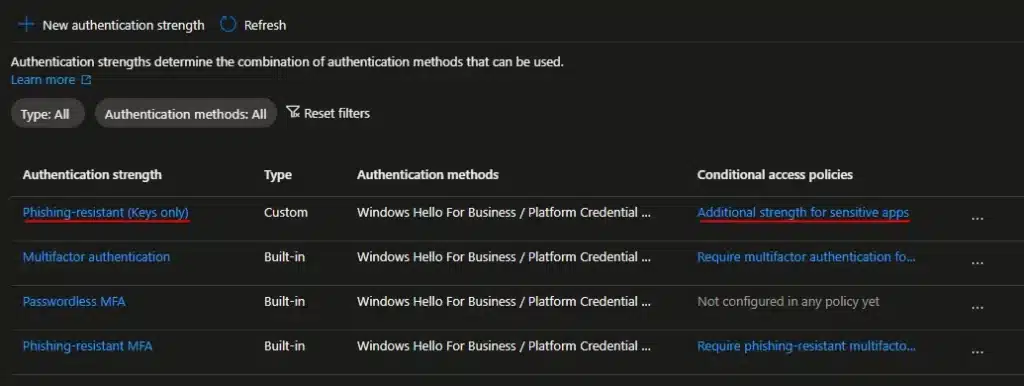
Passkey profiles work alongside Conditional Access authentication strengths, but they do different things:
- Passkey profiles control what users can register
- Authentication strengths control what users must use to access specific resources
For high-security scenarios, you’d combine both: a profile that restricts admins to device-bound passkeys, plus a Conditional Access policy requiring phishing-resistant auth strength for the Azure portal or Entra admin center.
A few quirks worth knowing about
AAGUIDs without attestation are advisory, not enforceable. When attestation is disabled, Microsoft states they “cannot guarantee any attribute about a passkey, including if it’s synced or device-bound.” AAGUID filtering without attestation is a guide, not a gate. If you need guarantees about what’s being registered, attestation must be enforced — which then excludes synced passkeys. A bit of a catch-22.

Lockout loop with SSO-integrated password managers. Some password managers, like Keeper, support Entra ID SSO. They also support storing passkeys within their browser extension or app. You can use it to authenticate to Microsoft 365 and others from then on, but if you get a new laptop and need to setup Keeper again – you need the passkey locked inside the vault to log in to Entra to unlock the vault… Make sure there’s a fallback method like Temporary Access Pass or a secondary passkey, even Windows Hello for Business would do the job here.
Attestation changes don’t retroactively block. Enabling attestation after users have already registered unattested passkeys won’t lock them out. But removing a previously allowed AAGUID from key restrictions blocks sign-in immediately. Be careful with those.
20 KB policy size limit. The Authentication methods policy maxes out at 20 KB. With multiple profiles, AAGUID lists, and group targeting, complex environments could approach this. For reference: a base policy is around 1.44 KB, each target with a profile adds ~0.23 KB, and each profile without AAGUIDs is ~0.4 KB.
Wrapping Up
Look, Microsoft forcing passkey profiles into Entra ID is genuinely a massive leap forward. It finally gives us the group-based granularity we’ve been begging for since FIDO2 became a thing.
But letting Microsoft dictate your default security posture is never a good idea. In the enterprise identity world, “automatic migration” usually just translates to “prepare for Helpdesk tickets.” Taking an hour today to review your current FIDO2 settings, figure out your strategy for synced passkeys, and opting in early will save you a massive headache next month.
The window to control this rollout before the automatic defaults kick in is closing fast. Don’t let this one slide.
If you’ve already started testing synced passkeys with your users—especially with third-party managers like Keeper, Bitwarden or 1Password—drop a comment or reach out. I’d love to hear how many QR-code-related support tickets you’ve had to field so far.
Resources
- MC1221452 — Microsoft Entra ID: Auto-enabling passkey profiles
- How to enable passkey (FIDO2) profiles in Microsoft Entra ID
- How to enable synced passkeys (FIDO2) in Microsoft Entra ID
- Synced passkeys FAQ
- Passkeys (FIDO2) authentication method concepts
- Passkeys Authenticator AAGUID Explorer
- passkeydeveloper/passkey-authenticator-aaguids: This repo contains a community sourced list of AAGUIDs for passkey credential managers to help with naming in end user management UIs
- iOS 26: Apple solved one of the biggest passkey headaches – 9to5Mac
- Security vendors join forces to make passkeys more portable for everyone | Bitwarden
- Pushing passkeys forward: Microsoft’s latest updates for simpler, safer sign-ins | Microsoft Security Blog
- SP 800-63-4, Digital Identity Guidelines | CSRC
- Passwordless authentication in 2025: The year passkeys went mainstream
- FIDO Alliance Launches Passkey Index, Revealing Significant Passkey Uptake and Business Benefits | FIDO Alliance
What’s Your Setup?
Are you already running passkeys in your environment, or is this the thing that’s finally pushing you to turn them on? Have you tested synced passkeys — and if so, which provider? I’d like to hear how you’re approaching this.




What if you set the attestation on but not add the guidid of the keys
Good question 🙂 if you just set attestation on Entra ID will try to check if it’s “genuine” or not.
So the practical effect is first that synced passkeys are excluded – even with adding AAGUIDs
In your case any YubiKey, Feitan, Windows Hello for Business, Authenticator should work