
Microsoft Tunnel Gateway needs a public TLS cert so iOS and Android clients trust the endpoint they connect to. That cert naturally expires. The first couple of years I’ve used to renew them “by hand”: generate a CSR, hand it to the PKI team (sometimes me, sometimes someone else), get a .cer back, rebuild a PFX through the Windows certificate store, copy it to the servers, run the import. Once a year, get the guys together, and a calendar reminder with some vague promises.
The current deadline is 398 days for iOS clients, and this will continually shorten the coming years, so we’re “on the clock” whether we like it or not.
So, this should be easy to automate, right? Turns out it absolutely is. Using a script called acme.sh, a provider called Let’s Encrypt, a verification method using DNS (-01), and a reload script (or cmdlet) that installs the fresh certificate onto the gateway and reloads the server with nobody watching. End to end, actual hands off – completely autopilot!
Disclaimer: The examples below are of course from a dev tenant with a “throwaway” gateway. You’ll of course have to modify the various bits and pieces to fit your environment.
What ACME even is
Short version follows: ACME is Automatic Certificate Management Environment, a protocol (RFC 8555) for getting a TLS cert from a CA without a human in the loop. Let’s Encrypt built it to make free, automated certs work at internet scale, and many commercial CAs support it now too.
The problem it solves: before a CA issues a cert, it has to know you actually control the domain. That used to be a human step, a portal click, an email, sometimes a phone call. ACME turns it into an API conversation. Your client asks for a certificate, the CA says prove you own the name by publishing this token, the client publishes it, the CA checks, the certificate drops.
acme.sh is just a client that speaks the protocol. certbot is another, same conversation with the CA, different tool driving it. And because the proof is an API call instead of a person, the renewal can run on a timer. That’s the whole foundation under the autopilot. No ACME, no automation, and you’re back to clicking through a portal every 90 days.
How ACME helps
Tunnel takes PEM directly: full-chain cert in site.crt, key in site.key. And an ACME client hands you exactly that. acme.sh writes fullchain.cer (leaf and intermediates already concatenated) and a matching key. No CSR by hand, no portal order, no PFX rebuild, no Windows certificate store quietly assembling the chain for me.
The CSR still exists. It just lives for a second inside acme.sh and I never see it. The SAN too: whatever I pass to -d becomes the SAN, so the “I really should add a SAN this time” note solves itself.
The box
For this demo I used Red Hat Enterprise Linux (RHEL) 10 on Hyper-V. It can also be version 8 or 9, and you can even run it on Ubuntu if that’s more your thing. The big difference for Tunnel is Docker vs Podman, and I don’t intend to engage in a conversation on whichever is better. I half expected RHEL 10 to be too new for Tunnel’s support list, but it’s actually supported fully already, with Podman 5.4.0 as the default.
Remember to switch the Secure Boot template from “Microsoft Windows” to “Microsoft UEFI Certificate Authority” if you went with a Generation 2 VM. MAC address spoofing isn’t necessary since the Tunnel uses a tun interface.
Some additional RHEL prep is needed too (ref. the prerequisites docs):
ip_tables and tun aren’t auto-loaded, so modprobe them and drop a file in /etc/modules-load.d/ so they survive a reboot. Enable IPv4 forwarding (net.ipv4.ip_forward=1). Install jq, which mst-readiness depends on (most probably it came installed). Then run mst-readiness for network, account, and utils and confirm it’s mostly greens and “Success” before you start on the setup script.
Issuing the cert
The challenge names don’t tell you much on their own, so here’s what they mean. ACME proves control by asking you to publish a token, and the challenge types are named for where that token goes. dns-01 puts it in a DNS TXT record. http-01 serves it as a file on port 80. tls-alpn-01 presents it in a special TLS handshake on 443. The 01 is a version suffix, the first iteration of each, not a count of how many DNS challenges there are.
I used dns-01. The proof lives in the zone, so it needs nothing inbound to the box. For a gateway whose whole job is being a guarded endpoint, opening port 80 just to answer a challenge is kind of backwards, and dns-01 works fine behind NAT too. Say your DNS provider is Hostmaster. acme.sh probably ships a dns_hostmaster (replace with your own) plugin, so this can then be fully automatic. (acme.sh has plugins for most providers; pick the one for yours, and the credential variables below take its name.)
Grab an API token and secret from the Hostmaster control panel (API administration). Then install acme.sh and issue, as root:
sudo -i

curl https://get.acme.sh | sh
source ~/.bashrc

acme.sh --set-default-ca --server letsencrypt
export HOSTMASTER_Token="..."
export HOSTMASTER_Secret="..."

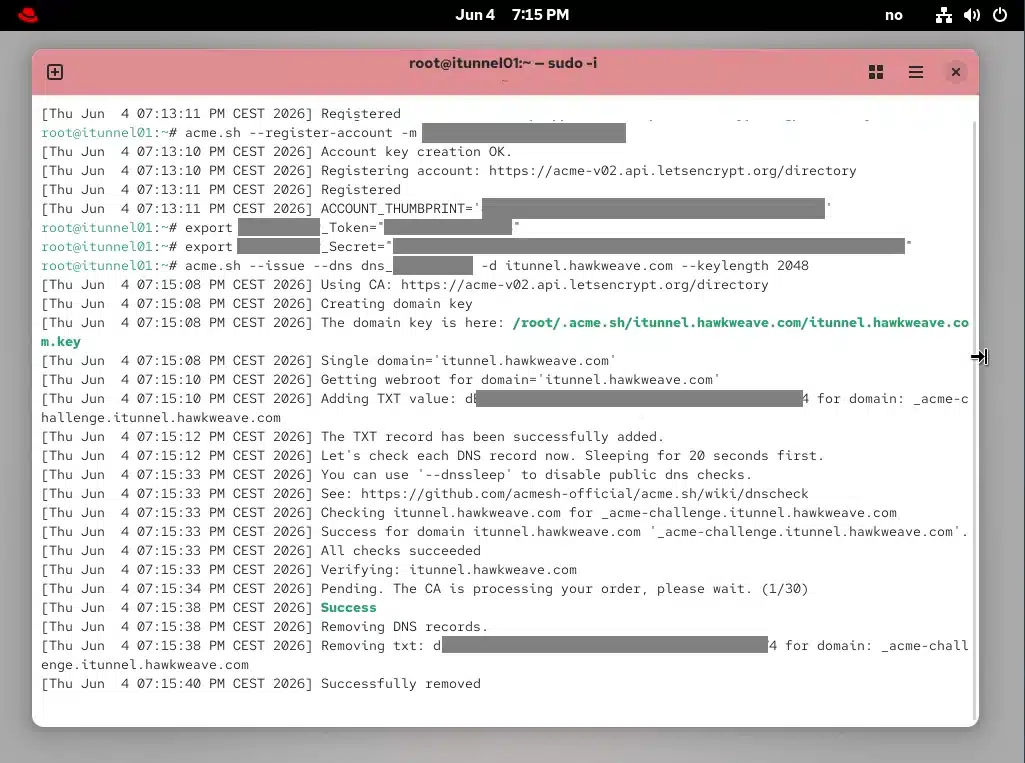
acme.sh --issue --dns dns_hostmaster -d itunnel.hawkweave.com --keylength 2048
Issuing on its own doesn’t need root, it’s just files in a home directory, so any user can do it. But the renewal later has to reload the gateway and write into /etc/mstunnel, which a normal user’s cron can’t. So I run acme.sh as root from the start and skip moving it over later.
Force RSA with --keylength 2048 (or greater), and don’t take the default. acme.sh issues an ECDSA cert unless you tell it otherwise, and the Tunnel import rejects that with Not an RSA key. RSA also lands in a plain itunnel.hawkweave.com/ directory, where the EC default writes to ..._ecc and throws off the copy paths below. RSA 2048 is the minimum supported key length, and even if Microsoft supports and even recommends greater lengths, I just went with the bare minimum for this demo (link to the official prerequisites a couple of paragraphs up)

Finally – acme.sh writes the TXT record, Let’s Encrypt checks it, and the certificate lands, and acme.sh pulls the record back out on the way, so no stale _acme-challenge entries pile up in your DNS zone. The token and secret get saved to account.conf and reused on renewal, so this is about the only time you really handle them.
Corporate DNS is usually fine. If it’s Azure DNS, Route 53, or anything acme.sh has a plugin for, you can give it a credential targeted to just that one zone and it works pretty much like the dev run above. Of course security might not want to hand a script any write access to production DNS. Then you strictly don’t need to either: enter one static CNAME in the corporate zone pointing _acme-challenge at a throwaway zone you control, and let acme.sh write the TXT there instead (the --challenge-alias flag). One record added once, and no unnecessary privileges to the real DNS.
In any case – the necessary certificate files will afterwards be written to the running users home directory:

Importing it
The setup script pauses and tells you where the files go (Admin Task 2):
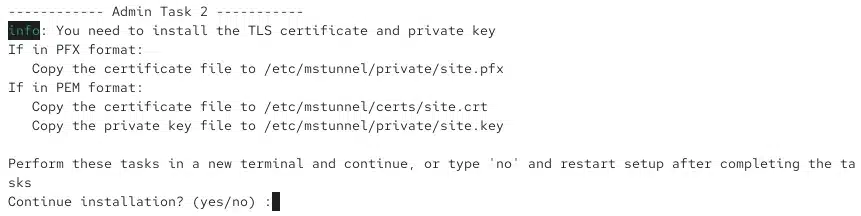
acme.sh handed you PEM, so ignore the PFX line. The script says to run these in a second terminal and continue, so leave the installer waiting and copy the full chain and the key into the two PEM paths:
sudo cp ~/.acme.sh/itunnel.hawkweave.com/fullchain.cer /etc/mstunnel/certs/site.crt
sudo cp ~/.acme.sh/itunnel.hawkweave.com/itunnel.hawkweave.com.key /etc/mstunnel/private/site.key
sudo chmod 600 /etc/mstunnel/private/site.key
Use fullchain.cer, not the bare itunnel.hawkweave.com.cer. The leaf on its own is missing the intermediates, and Tunnel needs the full chain in site.crt or clients can’t build a trust path.

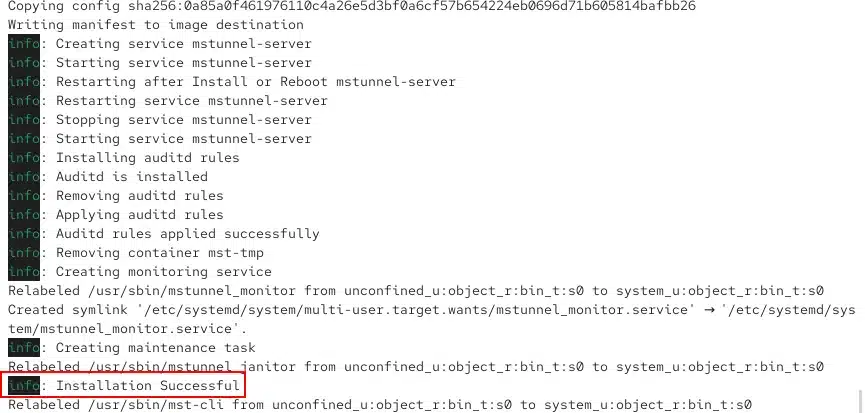
Then back to the first terminal and answer yes to finish setup. Finally you should see something like this:
Proof on the wire
After the clean install, I pointed a hosts entry at the gateway’s client-facing IP and hit it in a browser.
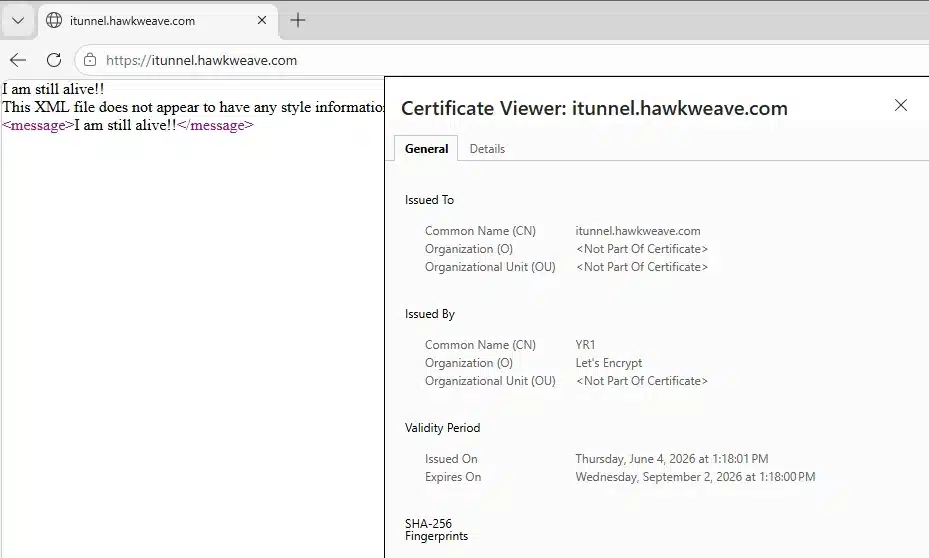
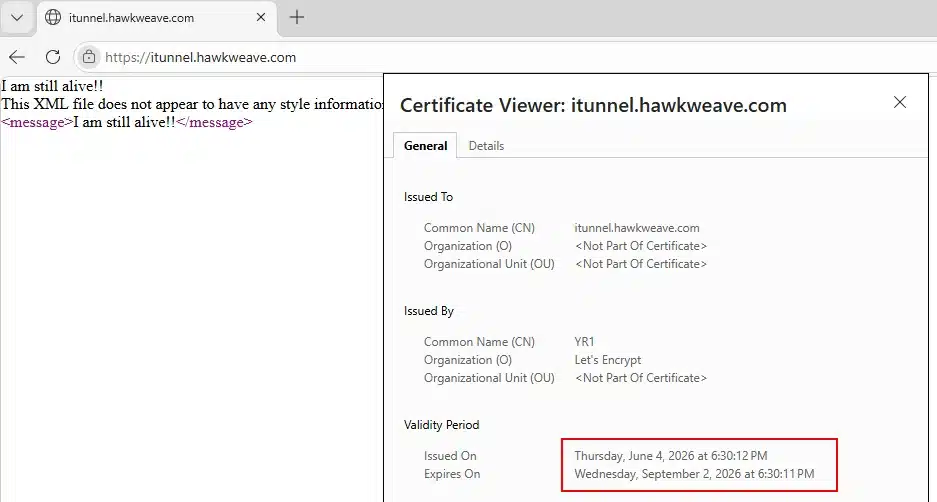
“I am still alive!!” is the static page the server answers GET requests with, the one load balancers probe for liveness. So the container’s up and serving on 443, and the cert on the wire is the Let’s Encrypt one, with the 90-day window sitting right there in the validity period.
That 90 days is the whole reason for the next part.
Renewing on autopilot
The cert’s issued and acme.sh is already running as root, so the renewal is one command to configure. acme.sh copies the cert into place on every renewal and runs whatever you hand --reloadcmd:
acme.sh --install-cert -d itunnel.hawkweave.com \
  --key-file       /etc/mstunnel/private/site.key \
  --fullchain-file /etc/mstunnel/certs/site.crt \
  --reloadcmd      "chmod 600 /etc/mstunnel/private/site.key && /usr/sbin/mst-cli import_cert"
acme.sh runs the reloadcmd immediately and records the config, so every future renewal repeats it. The daily cron checks the cert and renews around day 60. And it runs unattended because of PEM: import_cert reads the files and exits, no password prompt, unlike the old PFX import that stopped to ask for the export password every time.
acme.sh isn’t the only client that does this. certbot is the other common one, and people run the same Tunnel renewal flow with it. I went with acme.sh because the --install-cert reloadcmd hook fits this job cleanly, but the mechanism is identical either way.
One thing is missing from this setup though:
One last step: import_cert installs, but doesn’t swap
I forced a renewal to test the hook instead of waiting 60 days:
acme.sh --renew -d itunnel.hawkweave.com --force
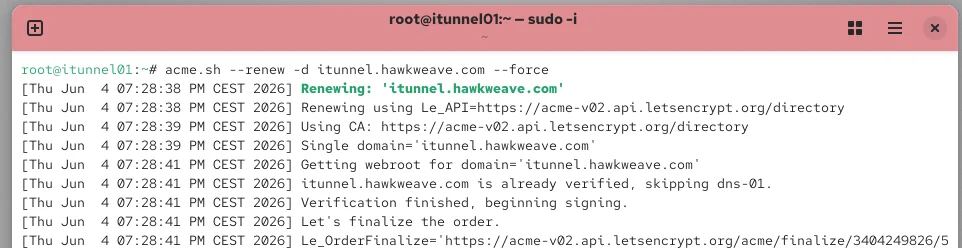
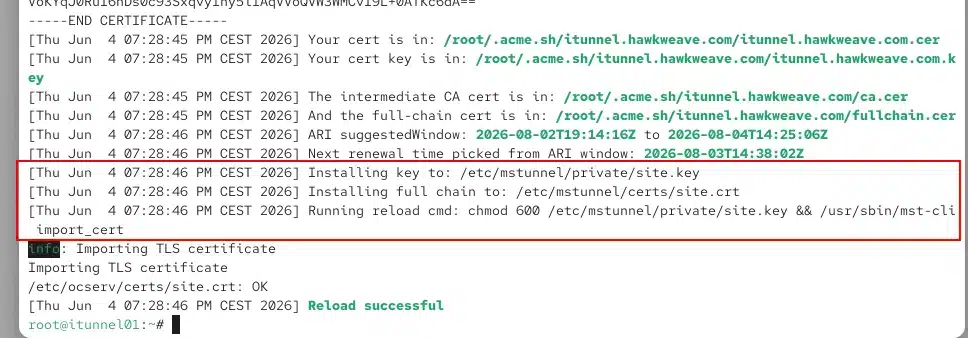
acme.sh issued a fresh cert, the reloadcmd copied it in, and import_cert printed OK and Reload successful. Looks done, but it wasn’t. The browser still served the old cert, and so did the network.
On this RHEL 10 / Podman 5.4 build, import_cert writes the new cert into place and reports success, but the running ocserv process keeps serving the old one. It stages the certificate, but it doesn’t switch it into the running service.
There’s a second issue here too: I’d renewed twice the same day, so both certs carry today’s date. Comparing “Issued On” tells you nothing. The field that separates two certs issued minutes apart is the serial.
Check three places as root: the issued cert, the deployed file, and what’s actually on the network.
sudo openssl x509 -in /root/.acme.sh/itunnel.hawkweave.com/fullchain.cer -noout -serial
sudo openssl x509 -in /etc/mstunnel/certs/site.crt -noout -serial
echo | openssl s_client -connect 127.0.0.1:443 -servername itunnel.hawkweave.com 2>/dev/null | openssl x509 -noout -serial


Store and deployed file agreed on the renewed certificate (serial tail E58854). The server was still serving the earlier certificate (tail B565130). New cert on disk, old cert in memory. import_cert delay 0 didn’t fix it either. What fixed it was a restart:
sudo mst-cli server restart
After that the server served E58854 and the browser matched. So the reloadcmd needs the restart on the end:
acme.sh --install-cert -d itunnel.hawkweave.com \
  --key-file       /etc/mstunnel/private/site.key \
  --fullchain-file /etc/mstunnel/certs/site.crt \
  --reloadcmd      "chmod 600 /etc/mstunnel/private/site.key && /usr/sbin/mst-cli import_cert && /usr/sbin/mst-cli server restart"
Re-running --install-cert just overwrites the stored hook, no reissue needed. Without that restart, every unattended renewal lands a valid cert on disk and keeps serving the old one until something bounces the container. A failure that passes its own test and surfaces weeks later, when the old cert expires with the new one sitting right there unused.
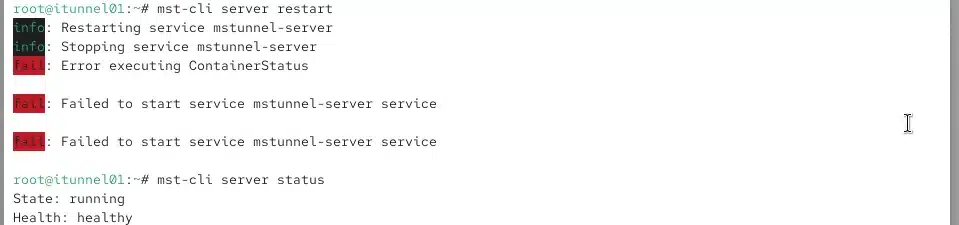
One thing I noticed: server restart printed an Error executing ContainerStatus and a couple of “Failed to start” lines, then mst-cli server status came back running and healthy with the cert swapped. The restart worked but errored out. That error is mst-cli tripping over its own status check mid-bounce, not a real failure apparently – as told when I ran the status right after.
Two caveats on server restart in an unattended hook. It drops every live VPN session on the gateway, so on production you’d time the renewal for a maintenance window rather than let the daily cron bounce sessions whenever it fires. And agent restart might swap the cert without bouncing the data plane, which would be gentler, but I haven’t tested that yet. If it works, it’s a drop-in for server restart here.
Last thing: Let’s Encrypt caps duplicate certs at 5 per week for the same name. Every issue and reissue counts, so stacking test renewals in one day gets you close. Prove it once, then stop, or you wait out the cap.
For production
Production usually means a different CA than Let’s Encrypt, but acme.sh ships with several: ZeroSSL (the default now), BuyPass, SSL.com, and Google Trust Services. BuyPass is Norwegian, if you want to keep it local. They all issue DV certs over ACME, which is all a Tunnel gateway needs. The client just has to trust a publicly signed cert with the right name in the SAN. No OV or EV required.
Switching CAs is mostly a --server change. Point it at the one you want, and for the CAs that need External Account Binding (ZeroSSL, SSL.com, Google), register the account first with the --eab-kid and --eab-hmac-key they give you. BuyPass and Let’s Encrypt don’t need EAB. The DNS-01 challenge, the install-cert hook, the restart, all stay identical.
And if you’re tied to a particular commercial CA that isn’t one of those, you’re not necessarily out of luck. acme.sh can talk to any ACME endpoint, not just its built-in CAs, so if your CA exposes an ACME directory of its own, you point --server at that URL and register with the External Account Binding credentials it hands you.
I’ll be sure to update this post – if and when I can test with some of the other CAs.
What you end up with
A gateway that renews its own TLS cert. The daily cron checks the cert, renews it around day 60, drops the fresh files into /etc/mstunnel, restarts the server to swap the new cert live, all without a login. The 90-day clock that makes manual renewal a chore is now the thing keeping you ahead of expiry instead of chasing it.
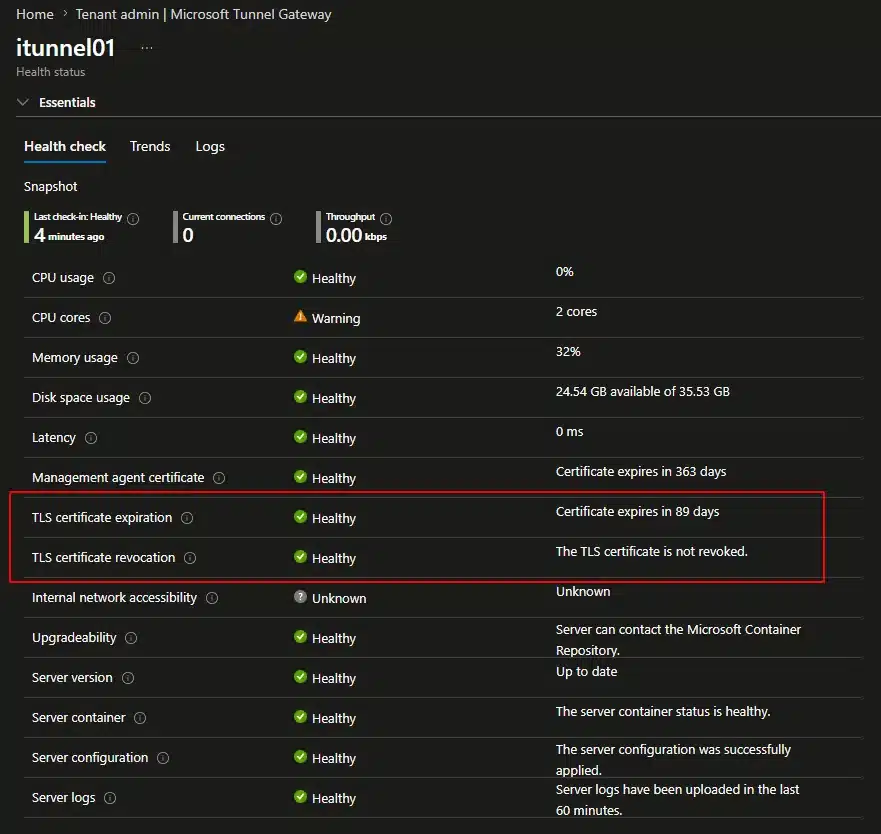
Get three things right and the rest takes care of itself: force RSA so the import accepts the key, run acme.sh as root so the renewal can reload the server, and put server restart in the reloadcmd so the new cert actually goes live instead of just landing on disk. Set those once and the calendar reminder goes away.