

Microsoft released a Zero Trust Assessment tool that’s pretty straightforward to run and gives a comprehensive check of your tenant’s Zero Trust maturity. Most of us are familiar with Secure Score and similar tools that give an indication of security levels. This one goes a bit deeper and checks both Identity and Devices with updated and hopefully more relevant scoring.
I found it useful because it shows exactly which areas need attention.
What It Does

The tool is a PowerShell module that connects to your tenant and runs 130+ automated tests against your Identity and Device configurations. It checks everything against Microsoft’s Secure Future Initiative learnings – the actual security patterns they implemented internally after their own security incidents.
Results show up in an HTML report with visual dashboards and detailed lists you can use for implementation planning. Everything from admins without phishing-resistant MFA to which iOS devices lack App Protection Policies – the kind of things that matter in today’s threat landscape.
Currently covers Identity and Devices pillars. Microsoft is working on expanding the tests (from around 35 for Intune now to about 70 they have planned), with Data, Apps, Infrastructure, and Network pillars coming later.
Installation and Running
You need PowerShell 7 or higher. Windows PowerShell 5.1 won’t work for this. If you haven’t already, download or update from: https://aka.ms/powershell-release?tag=stable
# Install the module
Install-Module ZeroTrustAssessment -Scope CurrentUser

# Connect to your tenant
Connect-ZtAssessment

# Run the assessment
Invoke-ZtAssessment
You’ll get two sign-in prompts – one for Microsoft Graph and one for Azure (if you don’t have Azure, just close that window and the tool skips those tests). First time requires Global Administrator for consent, but subsequent runs can use Global Reader.
The assessment takes 5-20 minutes depending on tenant size. Everything runs locally on your machine – the tool pulls your configuration via read-only API calls and generates the report on your desktop.
Report saves to: .\ZeroTrustReport\ZeroTrustAssessmentReport.html
Important: The report contains detailed security information about your tenant. Treat it as sensitive data.
What Gets Tested
Some examples of what the tool checks:
Identity tests include:
- MFA enforcement for all users and apps
- Legacy authentication blocking
- Conditional Access policy coverage
- Password protection settings
- Privileged Identity Management configuration
- Emergency access account setup
- High-risk sign-in handling
Device tests include:
- Intune enrollment requirements
- Device compliance policies per platform
- Security baseline deployment (Windows, Edge, Defender)
- BitLocker enforcement
- App Protection Policies for iOS/Android
- Windows Autopilot configuration
- Device Conditional Access requirements
Each failed test shows:
- Risk level (Critical/High/Medium/Low)
- Implementation effort (Easy/Medium/Complex)
- User impact (None/Low/Medium/High)
- Direct link to the specific policy or configuration
- Step-by-step remediation guidance
The Report
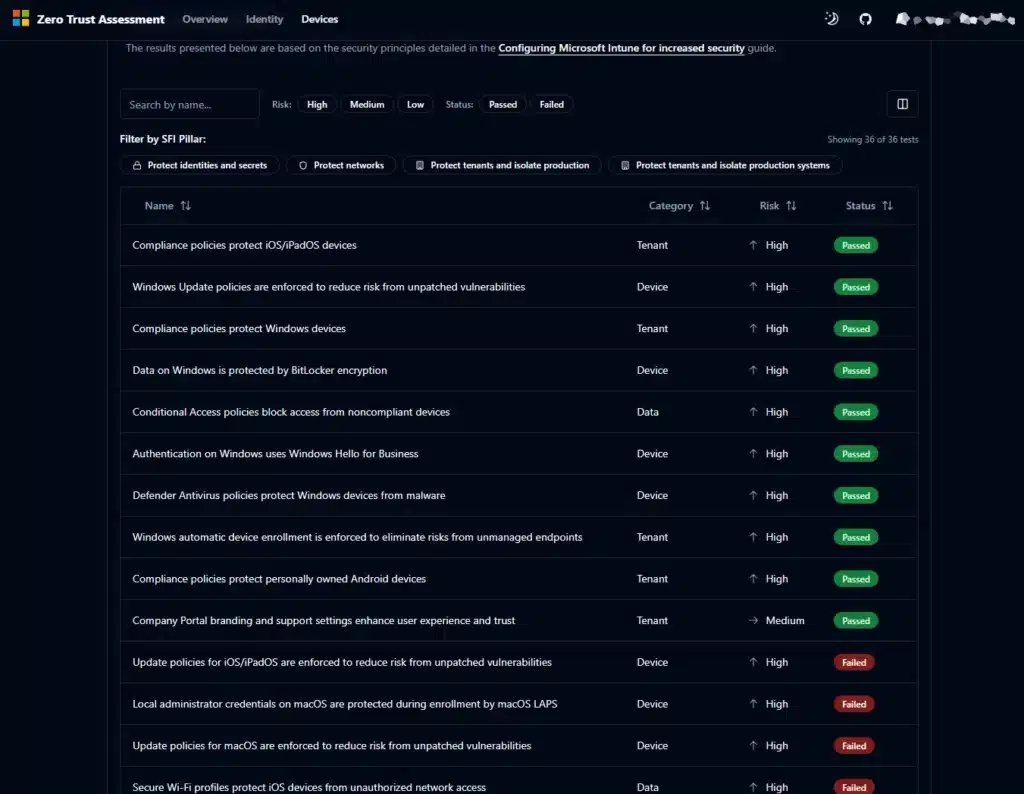
The HTML report has three main tabs:
Overview – High-level dashboard showing Zero Trust posture across all six pillars. Identity and Devices show actual results, other pillars show “Not Evaluated” for now.
Identity – Detailed results for all Identity tests. Can be filtered by risk level, status, policy name. Each item links directly to the configuration in your tenant.
Devices – Same structure for device management. Shows Intune compliance policies, configuration profiles, app protection policies, enrollment settings.
You can view a demo at: aka.ms/zerotrust/demo
Prioritizing Fixes

The tool categorizes findings by risk level, implementation effort, and user impact. This helps you decide what to tackle first versus what needs planning.
During a recent ConfigMgr to Intune migration, we ran this assessment and found Conditional Access gaps that would have allowed legacy authentication to bypass MFA. Those were marked as Critical risk with Easy implementation – fixed them before the migration rather than discovering the problem after users moved over.
That’s the useful part about the categorization. You can filter by “Critical + Easy” and knock those out quickly, while the Complex/High Impact items go into proper project planning.
Integration with Existing Work
The HTML report is designed to be shared and used in your normal workflows. You can send it to security team members, include it in project documentation, or present it to leadership.
For tracking remediation work, you can:
- Export the findings to your existing project management tools (Azure DevOps, Jira, etc.)
- Create work items based on the High/Critical failures
- Use the direct links in the report to jump to specific configurations that need fixing
- Run the assessment periodically to track progress
Microsoft also provides a separate Zero Trust Workshop framework (downloadable from aka.ms/ztworkshop) with Excel templates for longer-term planning. That’s a 12-24 month roadmap tool, not something the assessment generates – but the assessment results feed into it nicely if you want that level of planning.
For my projects, I’ve found a few practical uses:
Pre-migration – Before moving clients from ConfigMgr to Intune, assess existing Intune configuration and identify gaps that need fixing first.
Post-deployment – After implementing Conditional Access or Intune policies, verify they meet Zero Trust standards and catch misconfigurations early.
Quarterly reviews – Run it regularly to detect configuration drift and ensure settings don’t degrade as people make changes.
Executive reporting – The visual dashboard works well for leadership. “75% deployed on Identity with 3 Critical gaps” is clearer than walking through individual configurations.
In my recent Hyper-V lab work with PKI and Cisco ISE integration, Zero Trust principles guided the design. This assessment would have helped validate the Intune certificate configurations were properly hardened before connecting to ISE.
What It Doesn’t Cover
Current scope is Identity and Devices only. Data, Apps, Infrastructure, and Network pillars are coming but not available yet.
Only assesses Microsoft cloud services (Entra ID, Intune, Defender). Third-party integrations, custom apps, and on-premises infrastructure aren’t included.
The tool uses read-only permissions via Microsoft Graph. Some organizations will want to review the permissions before running in production. Full details at aka.ms/zerotrust/assessment.
Comparison to Other Tools
Secure Score gives a general security posture number. This tool is more specific – it tests against actual Zero Trust implementation patterns and shows exactly which configurations need changing.
The tests are based on Microsoft’s Secure Future Initiative – the hardening they did on their own infrastructure. Also aligned with CISA SCuBA standards and NIST Cybersecurity Framework.
Being PowerShell-based and running locally means it works on Windows, Mac, and Linux. Your data doesn’t leave your machine.
Running It Again
The tool is designed to be run repeatedly. After implementing fixes, run it again to validate progress. I’d suggest quarterly runs as part of normal security reviews.
Each run takes a few minutes and shows current state. You can track improvement over time and catch drift before it becomes a problem.
Resources
Documentation: aka.ms/zerotrust/assessment
Interactive Demo: aka.ms/zerotrust/demo
GitHub: github.com/microsoft/zerotrustassessment
Feedback: aka.ms/zerotrust/feedback
Summary
Microsoft’s Zero Trust Assessment provides an automated way to check your M365 tenant against their internal security standards. It’s free, runs locally, and gives specific remediation guidance.
For anyone managing M365 security or doing Digital Workplace implementations, it’s worth running. The report shows exactly where your gaps are and helps prioritize what to fix first.
The fact that it’s based on Microsoft’s own security transformation (not theoretical recommendations) makes the tests more relevant than generic compliance checklists.
Your experience? Have you run this assessment yet? What gaps did you find? Are you planning to integrate it into regular security reviews?
Let me know on X: https://x.com/HaakonWibe