
Often, if you’ve got a global presence, you can’t just ship a single language of Microsoft 365 Apps for Enterprise (Office, to most people) and call it done. Different regions want different languages, and the built-in Intune config doesn’t make that easy.
Installing languages after the fact is the awkward part. So is retrofitting them onto the sibling products, Project and Visio. And not every combination is even supported.
The community has built pieces of this before, and I wanted one package that brought all the building blocks together.
There was a second thing pushing me, too. When Intune’s built-in M365 Apps app failed, it failed with a hex code, and finding out why meant combing through IntuneManagementExtension.log and then cross-referencing Office’s own setup*<date>.log files in %TEMP%. The answer’s in there somewhere. Reconstructing it across two log sources on a bad morning is not my idea of fun.
So m365apps-deploy was born.
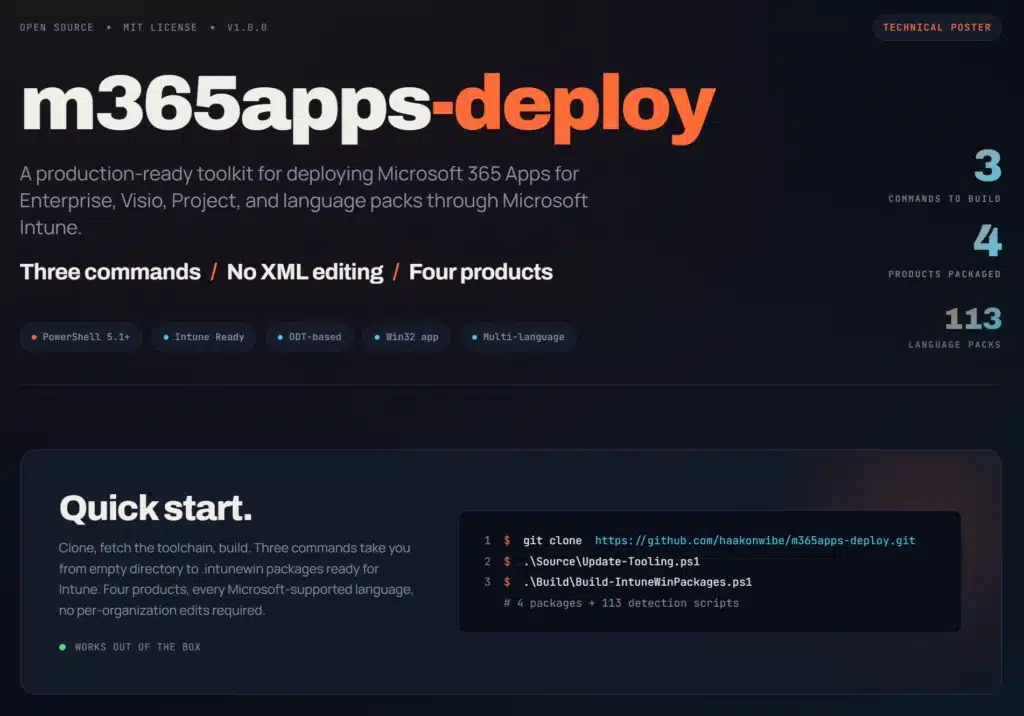
It builds Microsoft 365 Apps, Visio, Project, and language packs for all 113 Microsoft-supported Office languages into .intunewin packages with detection scripts, from three commands. MIT licensed, public on GitHub.
Bear in mind, this toolkit is completely unnecessary if you don’t plan adding Project or Visio to existing M365 installations, or if you don’t plan to let users install language packs easily themselves (or add languages not available “out-of-the-box” in Intune’s M365 customization options).
This toolkit is for you though if you do any of the above. Or if M365 apps failing to install ruins your day and you don’t know why. Or if you just like more user-friendly logging!
Three commands
git clone https://github.com/haakonwibe/m365apps-deploy.git
.\Source\Update-Tooling.ps1
.\Build\Build-IntuneWinPackages.ps1
Clone, fetch the verified toolchain, build. Out comes four products’ worth of packages and the per-language detection scripts that go with them. No source XML to edit.
Four products, every language
Each of the 113 languages gets its own auto-generated detection script. One language-pack package, deployed per language by passing the tag as a parameter, assigned to whichever group should get it.
The detection logic is single-sourced. Build-time generation stamps it into all 113 scripts, so the script that runs on the client and the logic you author can’t drift apart. Add Norwegian to one region and French to another by assignment alone.
One asymmetry to know about: not every language Office supports is available for Project and Visio. English UK (en-GB), French Canada (fr-CA), and Spanish Mexico (es-MX) all exist for Office but have no Project or Visio base language. That’s why this toolkit installs Visio and Project as a constant en-US, independent of the Office base culture. Let the add-ons naively inherit an en-GB base and ODT trips a prerequisite (BOOTSTRAPPER_PREREQ-UnsupportedCulturesOnUnsupportedProducts) and exits 1603 without even attempting the install, another fail-late-and-silent that the always-en-US base sidesteps. Additional UI languages still go on top as separate language-pack apps, the same model used everywhere else. Microsoft’s language matrix carries the full list (footnote against those three).
The matrix is checked before ODT runs
That per-product asymmetry is easy to trip over. You see Office supports en-GB, you add the en-GB pack to Visio, and ODT either fails or quietly does nothing, back to combing logs to work out why.
So the install validates the (language, product) pair against the matrix before setup.exe is ever called. Ask for en-GB on Visio and it stops with a clear message naming the unsupported combination, instead of handing you an ODT exit code to decode. The check is the same idea as the rest of the toolkit: fail early, in words, rather than late and silent.
Re-running a language pack catches the siblings up
Here’s a behavior I’m glad I designed for, because it would have been a confusing support call otherwise.
Deploy a language pack and it doesn’t just touch the base Office product. It lands on every Click-to-Run product on the box in a single run. The log below is an fr-fr deploy with Office, Project, and Visio all present: the pre-run status shows all three missing French, setup.exe runs once, and the post-run status shows all three installed.
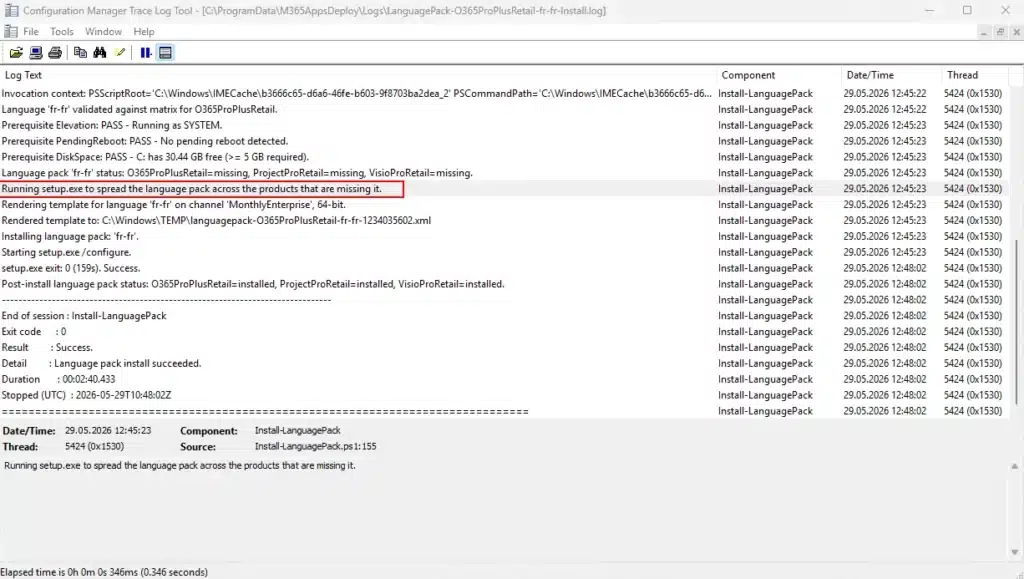
That matters most on a re-run. Say Office already had French, and you added Project and Visio afterward. They came down in the base language. Redeploy the fr-fr pack and you might expect it to see French on the base product and report “already installed.” It doesn’t. Before doing anything, the script snapshots per-product status, and its aggregate “installed” flag is only true when every product carries the language. A freshly added Visio or Project flips it to false and sends the script on to run setup.exe.
The spreading itself is ODT’s job. The template uses Product ID="LanguagePack", Microsoft’s product-agnostic pseudo-product for language accessories, which applies the language to every C2R product present. My script’s part is the decision around it: working out that the run is needed, logging which products had the language and which didn’t (the status line above), then re-snapshotting afterward to prove it landed everywhere. If setup.exe returns 0 but a product is still missing the language, that’s a silent failure, and the script exits 17002 instead of reporting success.
So the language packs are idempotent in the useful direction. A redeploy isn’t a wasted run, it heals coverage across the sibling products. You don’t have to choreograph install order between languages and add-ons. And when everything already has the language, the snapshot catches it and skips setup.exe entirely.
Customize at build time
Set CompanyName, exclude the apps you don’t ship (Access, Bing, Teams, OneDrive, whatever you don’t want), and pick a channel. All of it from CLI flags or a single build-config.json. No editing source XML, no re-exporting from the Office Customization Tool every time something changes.
The base UI language is a knob too: it defaults to en-us, but -Language sv-se sets it to whatever you want, validated against the matrix at build time so a typo fails the build instead of surfacing as a 17002 at install. (Visio and Project are the exception, more on that below, they always land as en-US.)
Channels show up by friendly name throughout, MonthlyEnterprise rather than officecdn.microsoft.com/pr/55336b82-.... The resolved name also feeds the XML Channel attribute, so LTSC builds use the ODT-accepted values (PerpetualVL2021, PerpetualVL2024) without you having to remember them.
Detection that survives Intune
Two things Intune does to detection that you have to design around.
First, detection runs in its own isolated context. It can’t Import-Module your shared helpers, so a script that depends on Common\ works on your test VM and fails on the client. Every generated detection script here is fully standalone, with shared logic inlined at build time.
Second, the Intune Management Extension runs as a 32-bit process, and Click-to-Run writes its state to the 64-bit registry. A 32-bit read gets redirected under WOW6432Node and finds nothing, so detection reports the wrong answer with no error. Every Click-to-Run read is pinned to the 64-bit view explicitly:
$base = [Microsoft.Win32.RegistryKey]::OpenBaseKey(
    [Microsoft.Win32.RegistryHive]::LocalMachine,
    [Microsoft.Win32.RegistryView]::Registry64)

$config = $base.OpenSubKey('SOFTWARE\Microsoft\Office\ClickToRun\Configuration')
Logs
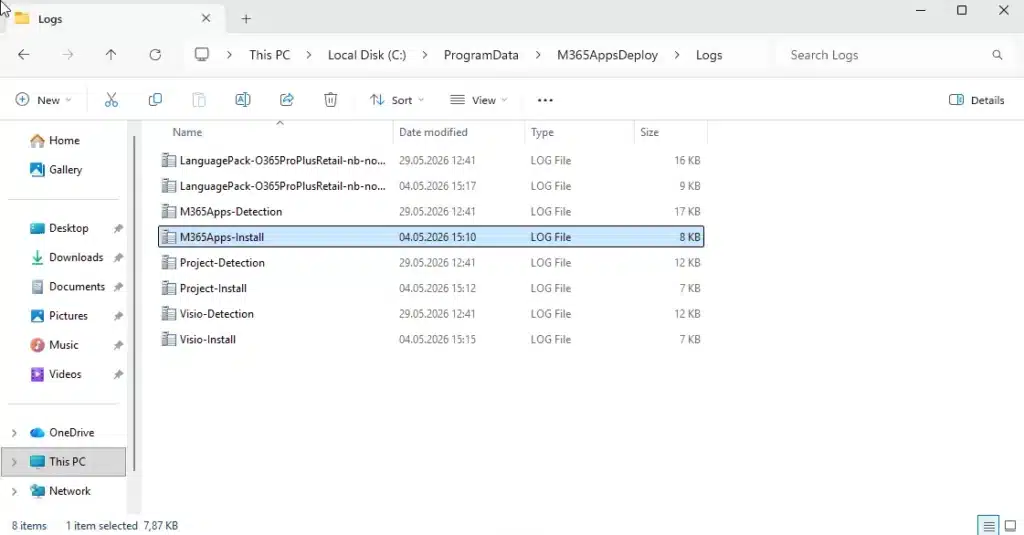
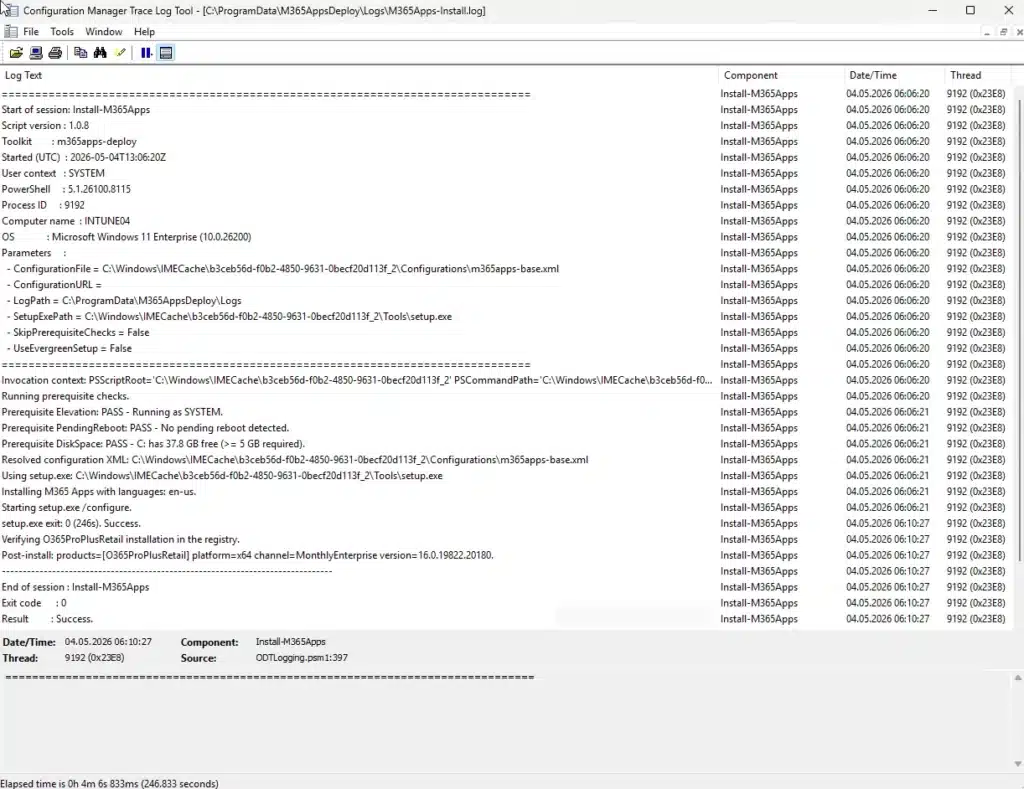
Logging is CMTrace format throughout. Open them in CMTrace or OneTrace from the ConfigMgr toolkit and you get the color-coded, filterable view instead of a wall of plain text.
Each install, uninstall, and detection run writes its own log under C:\ProgramData\M365AppsDeploy\Logs\, and every line is tagged with the product and language it belongs to. When one language pack out of the set misbehaves, you’re reading one file about one deployment, not grepping a shared log for the run you actually care about.
Add and remove without collateral damage
Every product ships matching install, uninstall, and detection.
Uninstall is the part most worth getting right. ODT’s <Remove All="TRUE" /> tears down the entire Click-to-Run stack. Push that to remove one language pack or to retire Visio, and it takes Office with it. So each product removes only its own ProductReleaseId:
<Remove>
  <Product ID="LanguagePack">
    <Language ID="nb-no" />
  </Product>
</Remove>
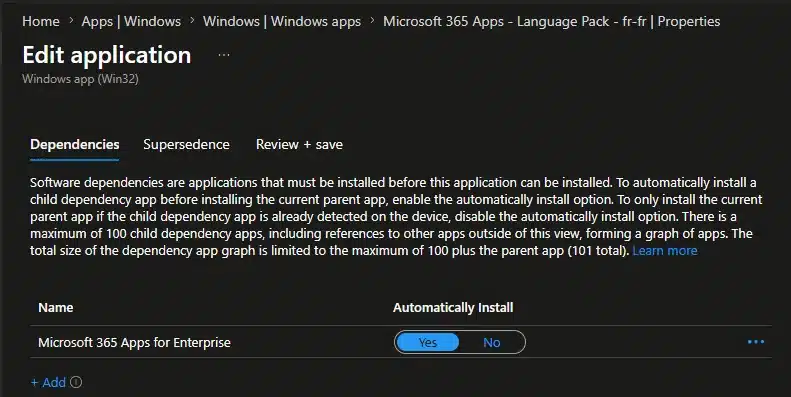
Ordering during ESP is handled with Intune dependencies rather than scripted waits: M365 Apps is declared as a dependency for Visio, Project, and each language pack, with auto-install on. Retire a product, add a language, scale to a new region, all of it reversible through assignments with no rebuild.
Letting the license decide who gets Visio and Project
The toolkit builds the packages and deliberately stays out of licensing. That part is environment-specific, and the README says so. What I pair it with is a couple of Entra dynamic groups that populate themselves from the license a user already holds, so the Visio and Project add-ons land on exactly the people entitled to them and nobody else.
Each rule keys on the desktop-client service plan inside the user’s license and checks it’s actually enabled. Project (group “Apps – M365 Add-ons – Project”):
user.assignedPlans -any (assignedPlan.servicePlanId -eq "818523f5-016b-4355-9be8-ed6944946ea7" -and assignedPlan.capabilityStatus -eq "Enabled")Visio (group “Apps – M365 Add-ons – Visio”):
user.assignedPlans -any (assignedPlan.servicePlanId -eq "663a804f-1c30-4ff0-9915-9db84f0d1cea" -and assignedPlan.capabilityStatus -eq "Enabled")Assign the matching Win32 app to each group and membership maintains itself. License a new starter for Visio and they pick up the app on the next sync. Remove the license and they drop out of the group and the app uninstalls. No manual group juggling, and no Visio landing on someone who isn’t licensed for it.
One thing to check before copying those GUIDs: the desktop-client service plan ID differs between Project and Visio SKUs (Plan 3 versus Plan 5, standalone versus bundled). Read the right one off a licensed user, or look it up in Microsoft’s service plan reference. A GUID that doesn’t match your SKU builds an empty group with no error.
A verified, offline build
The build pipeline doesn’t touch the network. It assembles XML, stages, and packages, and that’s all.
The one step that reaches out is the one you run on purpose. Update-Tooling.ps1 downloads the current setup.exe and IntuneWinAppUtil.exe, verifies each one’s Authenticode signature against Microsoft before placing it, and records the source URLs and timestamps in a manifest. An unsigned or tampered download fails the refresh before it can reach a build.
The staged layout and the generated output are committed to the repo, so you can read the actual detection scripts and the deployed-package structure straight on GitHub before you clone anything. A Pester suite (577 tests across 14 files, all mocked, no real registry or ODT calls) runs before every tagged release.
Get it
→ github.com/haakonwibe/m365apps-deploy
Built with heavy AI assistance. Claude Code did the edits, Claude Opus reviewed the architecture, and I as Head Honcho reviewed and tested every step before it landed.
If you’re deploying Office through Intune in a multi-language tenant, I’d like to hear how you’re installing it and handling languages added after the fact.