

I’ve been running a Hyper-V lab for a while now. Domain controller, enterprise CA, NDES, ConfigMgr, the usual suspects. Everything hums along nicely as long as you’re sitting on the same network. The moment you step outside, whether it’s a laptop on hotel Wi-Fi or your daily driver on the home network, those on-prem resources vanish.
VPN is the traditional answer. I wanted to try the newer one.
Note: This series uses a separate lab environment (dev.contoso.com) from my earlier Hyper-V lab posts. The principles and architecture are the same, but names and IPs differ. If you’ve been following the Hawkweave lab series, think of this as a parallel build focused specifically on GSA testing.
What Global Secure Access Actually Does
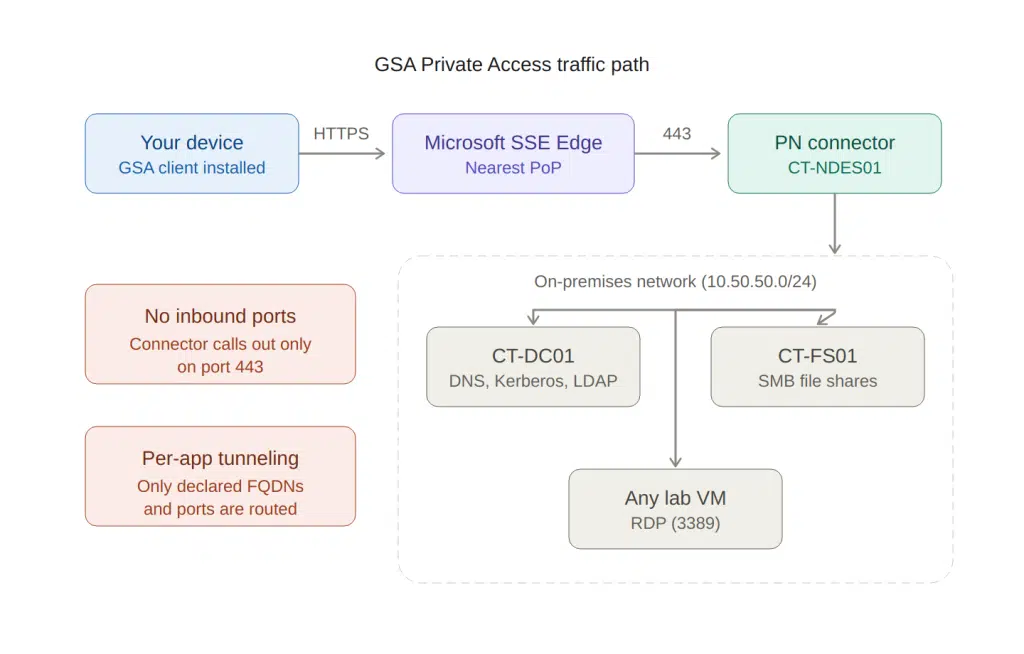
Microsoft’s Global Secure Access (GSA) Private Access is, at its core, a replacement for traditional VPN. But instead of a fat tunnel between your device and the network edge, it works more like a reverse proxy per application.
You define which on-prem resources you want to reach (by FQDN, IP, and port), and GSA tunnels only that traffic through Microsoft’s edge network to a connector running on-prem. No split tunneling debates, no “tunnel everything” vs “tunnel nothing” arguments. You declare the apps, GSA handles the plumbing.
The connector maintains an outbound-only tunnel. No inbound firewall ports. No NAT hairpinning. No DMZ gymnastics. If the connector can reach the internet on port 443, it works.
The Lab Setup
My lab runs on a single subnet (10.50.50.0/24) behind a pfSense firewall. The relevant pieces:
| Server | IP | Role |
|---|---|---|
| CT-DC01 | .10 | Domain Controller, DNS, DHCP, Entra Cloud Sync |
| CT-CA01 | .20 | Enterprise Root CA |
| CT-NDES01 | .30 | NDES, Intune Certificate Connector, GSA Connector |
| CT-FS01 | .43 | File Server |
The domain is dev.contoso.com, NetBIOS DEV. Identity is hybrid: on-prem AD synced to Entra ID via Cloud Sync with Password Hash Sync enabled.
The Connector
The Private Network connector runs on CT-NDES01. This server was already hosting the Entra Application Proxy connector for NDES publishing, and the same connector service handles Private Access traffic. No additional installation needed. One connector, two jobs.
It registered itself into a connector group I named “Default-Europe” in the Entra admin center. Enterprise apps are assigned to this group, and the connector picks up the traffic.
If you already have Application Proxy running somewhere, you already have a Private Access connector. Check Global Secure Access > Connect > Connectors in the Entra admin center.
Enterprise Apps: Defining What’s Reachable
Each resource type gets its own enterprise app in Entra. The app defines the FQDN/IP and port combinations that the GSA client is allowed to reach.
I set up three apps:
DC Access: CT-DC01 on ports 53 (DNS), 88 (Kerberos), 389 (LDAP), 636 (LDAPS), 445 (SMB), plus the RPC dynamic range. Both FQDN and IP segments, because some Windows internals use IP-based connections for DC locator and RPC operations.
File Shares: CT-FS01 on port 445. FQDN segment only.
RDP: Individual server FQDNs plus the entire lab subnet on port 3389. The subnet-wide IP segment covers ad-hoc RDP to any VM, including test clients that might not have DNS records yet.
FQDN vs IP Segments: This Matters
FQDN segments are not optional. They trigger DNS interception via the Name Resolution Policy Table (NRPT) on the client. Without FQDN segments, the client has no idea that CT-DC01.dev.contoso.com should be resolved through the tunnel. DNS queries go to the device’s normal resolver, which knows nothing about your internal names. Name resolution fails, Kerberos can’t build SPNs, SSO breaks.
IP-only segments work for direct IP connections, but they don’t trigger DNS interception. Use both when you need to cover edge cases (RPC, DC locator), but always include the FQDN.
I learned this the hard way. More on that in Part 2.
Private DNS: The Piece That Makes Everything Work
Private DNS is configured via Quick Access in the Entra admin center. You tell GSA which DNS suffix should be resolved through the tunnel. For my lab, that’s dev.contoso.com.
This pushes NRPT rules to the GSA client. Any DNS query for *.dev.contoso.com gets sent through the tunnel to the on-prem DNS server (CT-DC01) instead of the device’s normal resolver.
This is critical for Kerberos. The DC locator uses SRV records (_kerberos._tcp.dev.contoso.com) to find the KDC. Without Private DNS, those SRV records are unreachable, and Kerberos Cloud Trust (which we’re about to set up) has nowhere to send the ticket request.
One configuration in Quick Access. That’s all it takes. But if you remove it, Kerberos breaks entirely.
Kerberos Cloud Trust: The SSO Glue
Without Kerberos Cloud Trust, every file share access and RDP connection through GSA would prompt for credentials. You’ve already authenticated to Entra ID, but the on-prem resource doesn’t know that. Kerberos Cloud Trust bridges this gap.
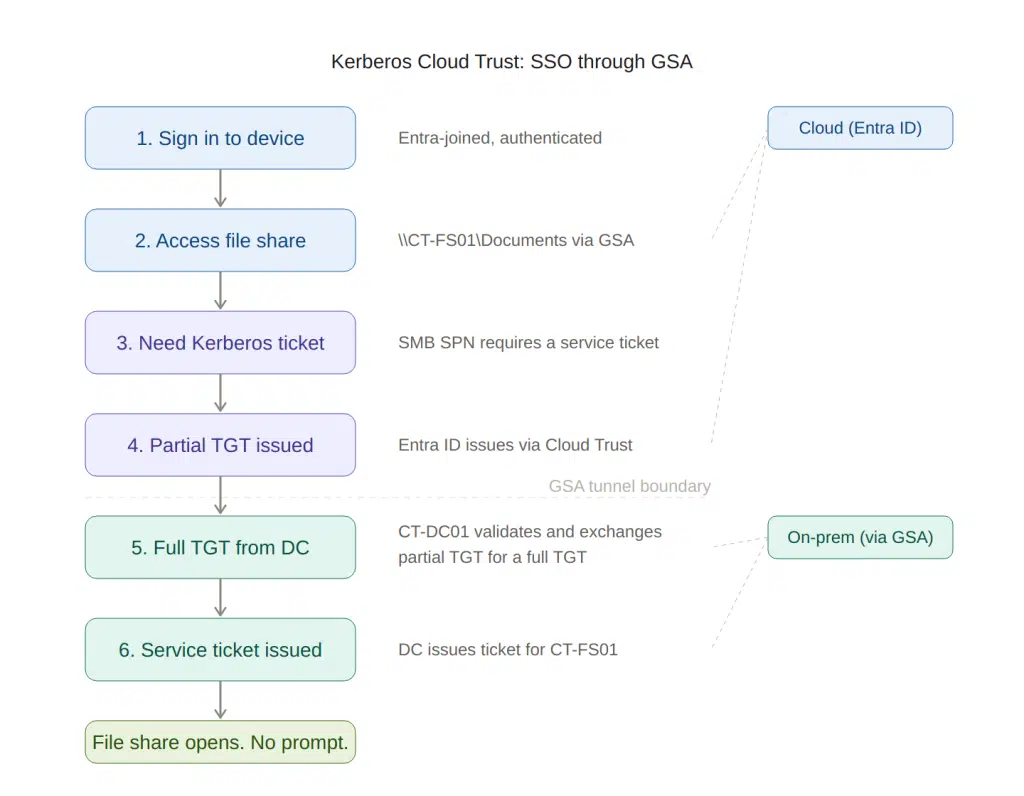
Setting it up requires creating an AzureADKerberos object in Active Directory:
# Requires the AzureADHybridAuthenticationManagement module
Set-AzureADKerberosServer -Domain "dev.contoso.com" `
    -CloudCredential $cloudCred `
    -DomainCredential $domainCred
You need both a Global Admin cloud credential and a Domain Admin on-prem credential. The command creates a computer object in the Domain Controllers OU that establishes the trust between Entra and your KDC.
Verify it took:
Get-AzureADKerberosServer -Domain "dev.contoso.com" `
    -CloudCredential $cloudCred `
    -DomainCredential $domainCred
You should see a valid key ID and key version. If the key version is -1, something went wrong.
The Pilot Group
GSA Private Access requires licensing (Entra Suite or equivalent P1+) and group assignment. I created a group called “Private Access Pilot” in Entra with two members: my own hybrid identity and one test user. Both got Entra Suite licenses assigned.
All three enterprise apps are assigned to this group. Only members with the right license and group membership get the Private Access traffic profile pushed to their GSA client.
What I Had Before Starting
This is worth calling out because GSA doesn’t exist in a vacuum. Before touching any GSA configuration, the lab already had:
- Entra Cloud Sync running with Password Hash Sync
- A hybrid identity for my account (via soft-match)
- The Application Proxy connector on CT-NDES01
- pfSense passing outbound HTTPS
- A working PKI with HTTP-accessible CDP and AIA
If you’re missing any of these, you’ll hit problems during GSA setup that aren’t GSA problems. The identity and certificate infrastructure is the foundation.
End of Part 1
At this point, the architecture is in place: connector registered, enterprise apps defined with FQDN and IP segments, Private DNS configured for the internal domain, Kerberos Cloud Trust established.
In Part 2, I’ll cover what went wrong, what I learned, and the troubleshooting playbook I wish I’d had before starting. Spoiler: nslookup is a liar and NTLM is sneakier than you think.
Have you tried GSA Private Access in your environment? I’m curious whether others hit the same DNS and Kerberos wall I did.