

Microsoft shipped unattended control with remote sign-in for Windows this week, and since I already had been working on setting it up for the “normal” attended access, I decided to have a look on the new capability. The deployment article covers the steps well enough, and any Intune admin will get through it without much trouble.
But a couple of the requirements are worth a comment, and one of the behaviors deserves more attention than the rest. I also think one piece of the documentation reads very backwards and one thing I found in the sign-in logs that I wasn’t expecting.
This is a lab tenant with Intune Suite, mix of physical and virtual Entra joined devices, nothing too crazy. The setup itself comes down to basically four things:
| Component | What it is | Where it’s configured |
|---|---|---|
| RBAC permission | Windows unattended control remote sign-in | Tenant administration > Roles |
| AVD agent + bootloader | Two MSIs, packaged as Win32 apps | Apps > Windows |
| Remote Desktop policy | Settings catalog profile | Devices > Configuration |
| Service principal | Remote Assistance Service, for Conditional Access targeting | Graph PowerShell |
All of it targets the same device groups, except the RBAC assignment and the service principal.
The Remote Desktop settings catalog profile
Let’s start with the Settings Catalog profile. It needs Allow users to connect remotely by using Remote Desktop Services set to Enabled, found under Administrative Templates > Windows Components > Remote Desktop Services > Remote Desktop Session Host > Connections.
This does not open inbound firewall port 3389 on your endpoints however (unless you already had that?…). What the setting actually does is change fDenyTSConnections to 0 so the Terminal Services listener will accept connections. It’s basically an OS setting, and doesn’t change Windows Firewall rules.
And that’s because the unattended session doesn’t need inbound 3389 anyway. The AVD agent uses reverse connect, so the device connects out to the broker and the helper’s session arrives back over that channel. You’re enabling the RDP connection locally, not publishing it “on the internet”.
Note: Depending on your firewall posture you may still need to allow
RemoteHelp.exe,RHService.exe, andRemoteHelpRDP.exethrough Windows Firewall. Again – that’s an outbound and loopback concern, not an inbound listener on 3389.
So no need for IT Security to worry – at least not about this config profile.
Packaging the AVD agents
Second item on the list are the Win32 packages. Unattended control depends on the Azure Virtual Desktop agent and the AVD agent bootloader. They also go under the names “Remote Desktop Agent Bootloader” and “Remote Desktop Service Infrastructure Agent”. Both are MSIs, both get packaged as Win32 apps, and the agent has to get installed before the bootloader because it depends on it.
Nothing here is hard for anyone who packages apps for a living. It’s just a bit more complex than I’d expect for something that I think is supposed to be a finished product.
The deployment documentation is clear about how to configure the dependency, and it’s very straightforward. Just set the AVD agent (the Remote Desktop Infra Agent) as a Win32 dependency of the bootloader with automatic install. That makes the ordering explicit and ensures a device gets them correctly installed.

If you install the agent by hand to test it, the MSI asks for a registration token and prefills INVALID_TOKEN. You leave it as is, because the agent isn’t registering against an AVD host pool and there’s no real token to give it. Deployed silently through Intune you never see the prompt, and you don’t pass REGISTRATIONTOKEN on the command line either.
After install there’s no configuration at all. The agents also self-update, which saves you the hassle of re-packaging. If you don’t want updates, there’s an install switch for that (next section).
Switches and values
Three packages in total then, and I’ve included the detection rules with version numbers from the time of writing.
| App | Install command | Detection |
|---|---|---|
| Remote Help | remotehelpinstaller.exe /quiet acceptTerms=1 | File: C:\Program Files\Remote Help\RemoteHelp.exe, version greater than or equal to 10.4.10008.1000 |
| Remote Desktop Services Infrastructure Agent | msiexec /i "Microsoft.RDInfra.RDAgent.Installer-x64-1.0.15008.300.msi" /qn /norestart | MSI product code {9E517C03-7990-4800-A050-ED26F41A2091} |
| Remote Desktop Agent Boot Loader | msiexec /i "Microsoft.RDInfra.RDAgentBootLoader.Installer-x64-1.0.11388.1600.msi" /qn /norestart | MSI product code {B7EAA4DF-2870-4386-910D-6465715A00BE} |
Use the product code for the two agents rather than a version rule. They self-update, so I advise to use just the MSI code.
acceptTerms is case sensitive, and so is enableAutoUpdates if you decide to add it. Setting enableAutoUpdates=0 pins Remote Help to the version you packaged, but then of course you get responsible for updating the packages instead.
Target device groups when creating the assignments for Remote Help, and not user groups.
Note: The Remote Help installer reports version
5.2.1040.0, but the .EXE that gets installed on the device reports10.4.10008.1000. Clearly the installer versus the actual executable. If you use Greater than or Equal it should still match in theory, but matching 5 majors up isn’t very useful either 😉(Get-Item "$env:ProgramFiles\Remote Help\RemoteHelp.exe").VersionInfo
The installers themselves come from aka.ms/downloadremotehelp for Remote Help, and https://go.microsoft.com/fwlink/?linkid=2310011 and https://go.microsoft.com/fwlink/?linkid=2311028 for the agent and the bootloader.
Creating the service principal
To make Remote Help selectable in Conditional Access, you create the service principal for the Remote Assistance Service by using Graph:
Connect-MgGraph -Scopes "Application.ReadWrite.All"
New-MgServicePrincipal -AppId "1dee7b72-b80d-4e56-933d-8b6b04f9a3e2"
Disconnect-MgGraph
The app ID belongs to a Microsoft first-party application. The service principal is the tenant-local representation of it, and Conditional Access can only target resources that have one, which is why RemoteAssistanceService won’t appear in the app picker until you run this.
Technically I guess that’s OK. I just find it a bit odd that a licensed Intune Suite feature is released without provisioning its own service principal when you enable it in Tenant administration. Most first-party services get configured on first sign-in or on consent. This one you provision manually, with Graph PowerShell, from a documentation page, so I think it could do with a little more polish – but maybe I’m getting old and grumpy.
Small thing on its own. But it’s exactly the kind of step that gets delayed in the Change Process – or even forgotten or skipped – and then someone from Security comes and does a review on CA and doesn’t get why the app they’re looking for isn’t in the list.
I’ll come back to the Conditional Access later in the post, but for now let’s get on with actually connecting to an unattended session.
Putting it all together
For my testing I just assigned all three apps as Available instead of Required, so I could install them from Company Portal on the test devices and monitor for issues. For real you’d obviously make them Required and target the device groups, but Available is just nicer in my opinion when you want to see the order for yourself.
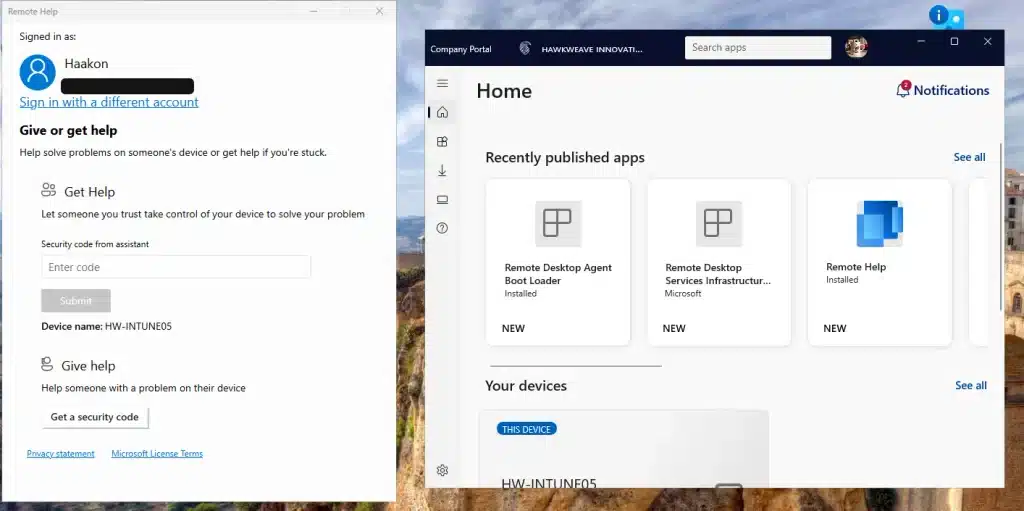
Company Portal shows both Remote Desktop (or AVD) apps, and Remote Help. Install the Boot Loader, to have the Infrastructure Agent get pulled in as the dependency. The IME takes care of that part.
Remote Help is a separate install and worth doing at the same time. You need it on the target device regardless of attended or unattended, and it’ll be useful anyway to verify the compliance check later on.
Then it’s worth confirming the config landed, and not just that the apps installed:
# Did the settings catalog profile arrive?
Get-ItemProperty "HKLM:\SOFTWARE\Policies\Microsoft\Windows NT\Terminal Services" -Name fDenyTSConnections

# Did the MSIs install?
Get-ItemProperty HKLM:\SOFTWARE\Microsoft\Windows\CurrentVersion\Uninstall\* |
    Where-Object DisplayName -like "*Remote Desktop*" |
    Select-Object DisplayName, DisplayVersion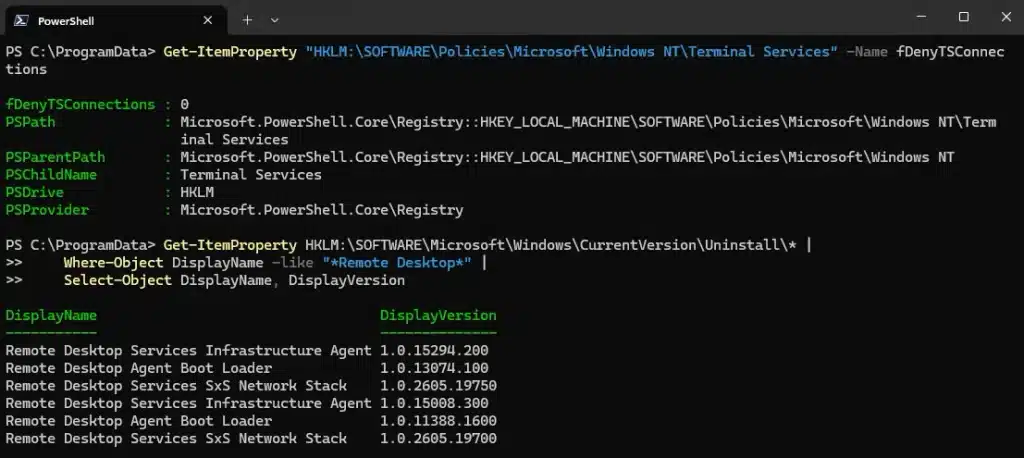
The policy value should be 0 and will override any HKLM:\SYSTEM Terminal Server setting.
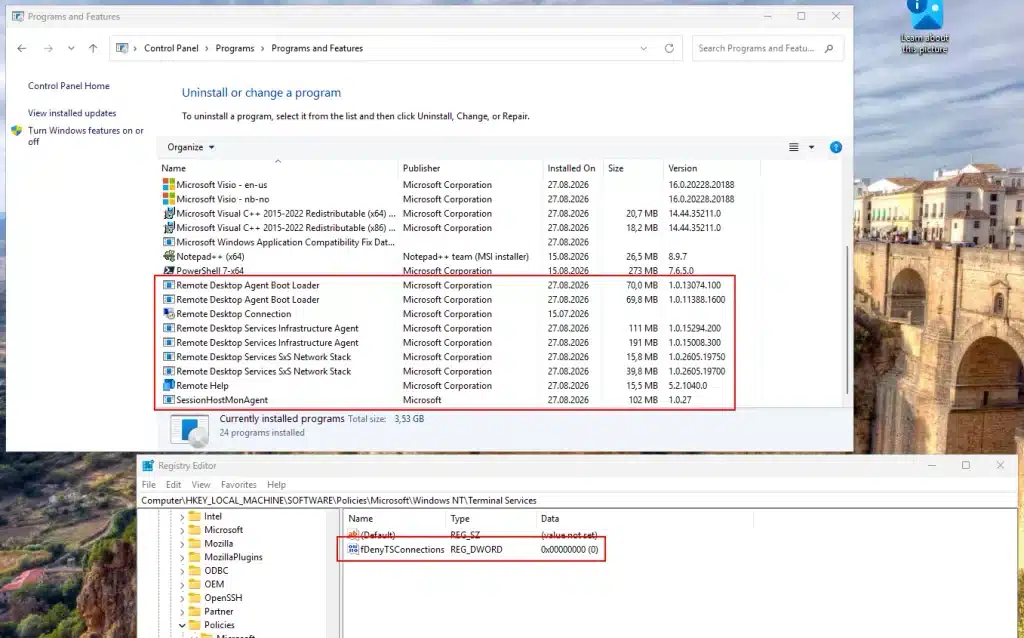
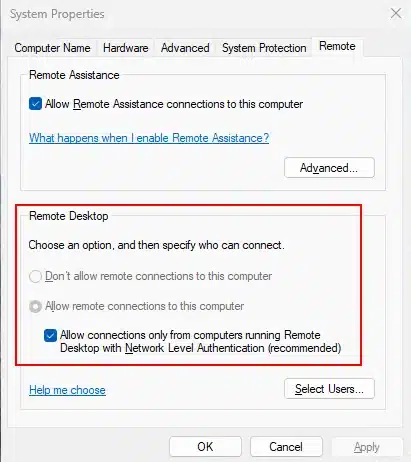
If you want to see that from the UI instead, open SystemPropertiesRemote.exe on the device. The Remote Desktop options are greyed out with a note – indicating the setting is managed:
The Agent service isn’t running continuously though – kind of expected it would, but seems that only TermService is running. So the AVD agent isn’t holding an open connection to the broker the way a session host would, it seems to get involved when a session is actually requested. I haven’t traced exactly what wakes it up, so don’t read any more into it than that.
Note: The apps self-update after install, so don’t be surprised if the agent version on the device doesn’t match what you packaged. As far as I can tell there’s no supported way to pin it.
What the helper side shows
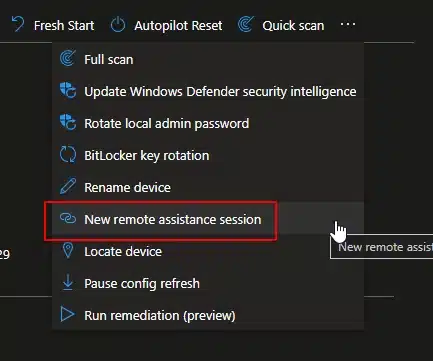
Anyway, let’s get started on some actual Remote Assistance. Find your device in the Intune portal, and click to expand the Device Overview page. From there click the three little dots in the top right corner and select “New remote assistance session”. This is the only way in too – you can’t start an Unattended session from the Remote Help app itself.
This pops out a page from the right asking you to confirm Remote Help as the provider, then which type of session you want, and finally a confirmation that all the prereqs and hoops and loops have been passed:
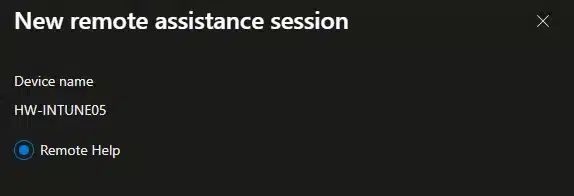
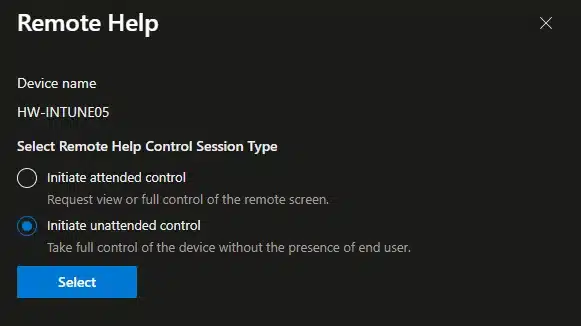
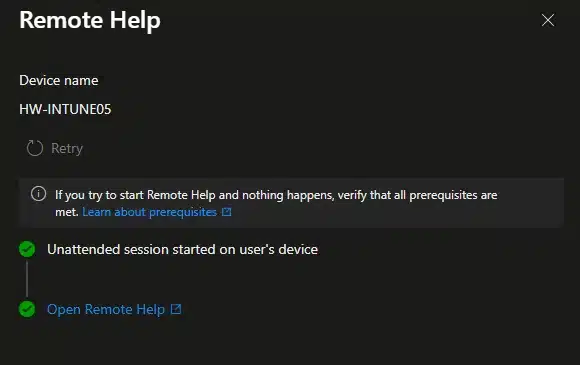
I connected as my Intune admin through the web client rather than the desktop app, and the AVD lineage is right there on the surface.
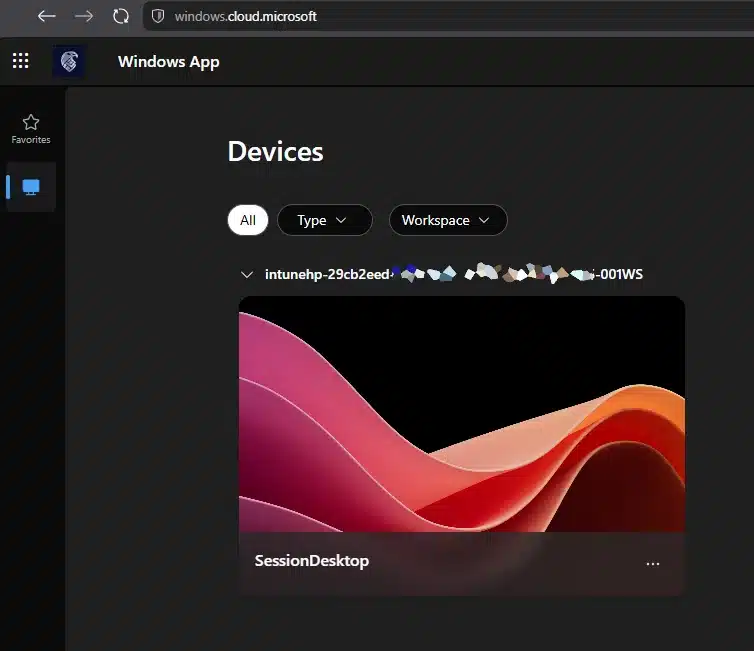
The target appears at windows.cloud.microsoft as intunehp-<guid>-001WS, and the published resource on it is named SessionDesktop. SessionDesktop is the default published desktop in an AVD desktop application group, and the -001WS suffix is the session host numbering you’d see in any host pool. The session URL also gives it away: windows.cloud.microsoft/webclient/avd/<workspace>/<resource>.
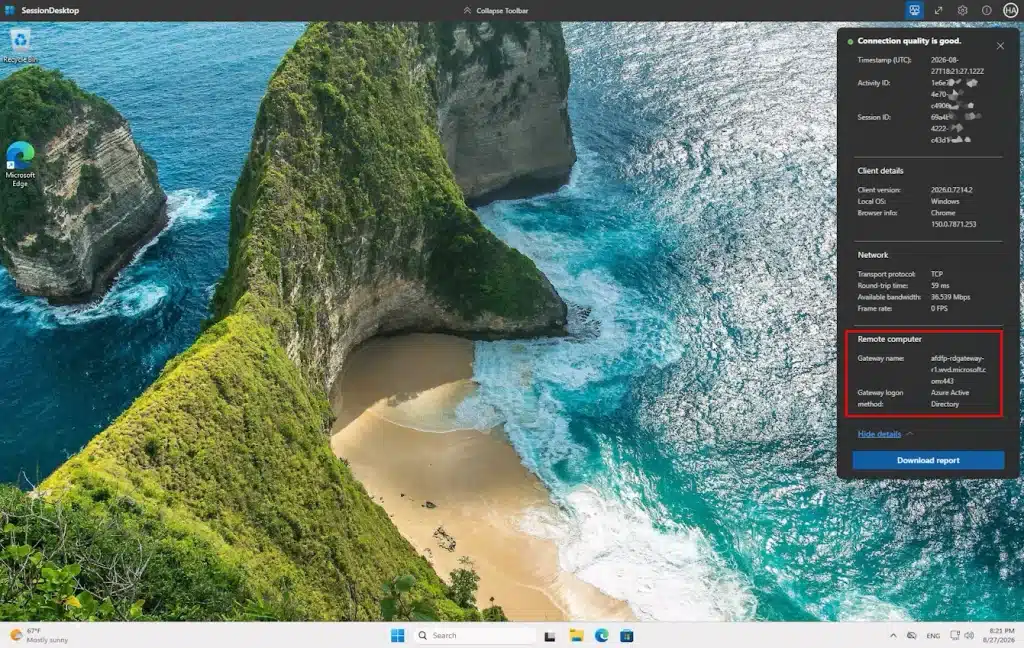
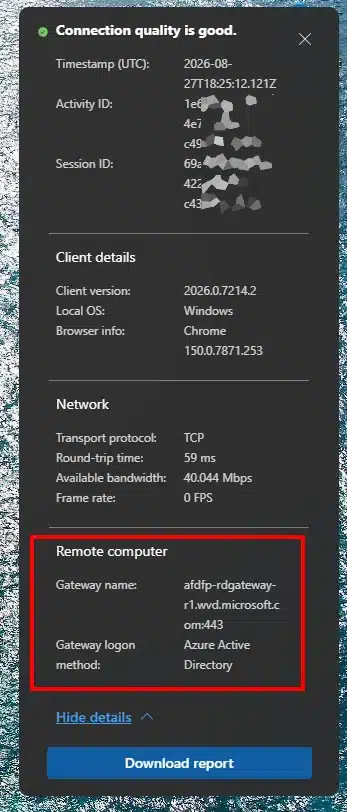
Open the connection details in the session toolbar and it shows clearly. The gateway is afdfp-rdgateway-r1.wvd.microsoft.com:443, with the logon method listed as Azure Active Directory. That’s the Azure Virtual Desktop gateway, on 443, doing exactly what reverse connect does. Same panel reports transport protocol, round-trip time, and available bandwidth, which is the same diagnostics surface you AVD guys out there already know.
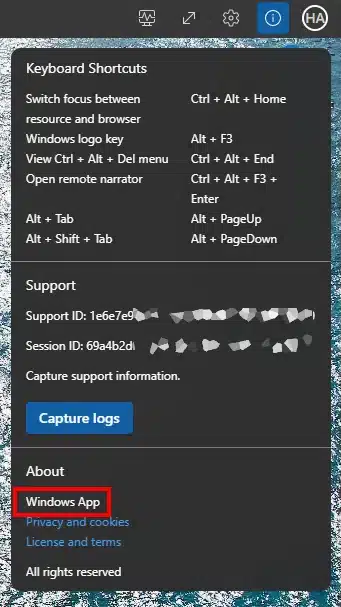
The client identifies itself as Windows App in the About panel, and there’s a Capture logs button next to the support and session IDs. If you end up raising a case about a failed session, that’s where the artifacts come from.
One thing worth noting for audit and for disk: the helper gets a real Windows session under their own account, profile directory and all. Running PowerShell in the session drops you in C:\Users\<HelperAccount>. Every helper who connects to a device leaves a local profile behind on it.
Before connecting you get AVD’s standard In Session Settings dialog, with toggles for printer and clipboard redirection, keyboard shortcuts, enhanced graphics, and multiple displays. Clipboard redirection can be helpful of course, but just be mindful of its usage. I believe this follows standard RDP session controls managed through your preferred channels, but haven’t configured them here yet.
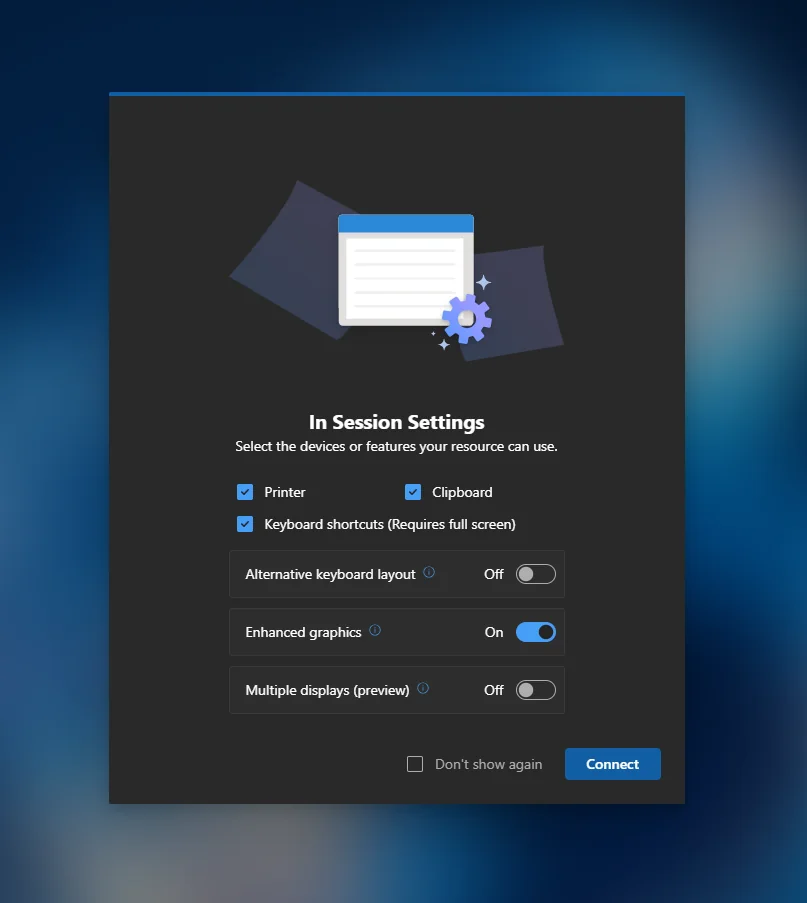
The portal side is a three-state blade: starting the unattended session, session started, then an Open Remote Help link. If nothing happens, the blade itself points you at the prerequisites, which is a nice touch given how many of them there are.
I haven’t dug into how the session host is provisioned or how long the entry lives, so that part stays an observation. The transport question is settled though, and it explains why the prerequisites are the AVD agent and bootloader instead of some Remote Help specific service.
What the signed-in user sees
Unattended doesn’t mean nobody’s home. If someone is signed in when the helper connects, they get the classic Remote Desktop Connection prompt on their own screen:
Do you want to allow AzureAD\<HelperAccount> to connect to this machine? Click OK to disconnect your session immediately or click Cancel to stay connected. No action will disconnect your session in 30 seconds.
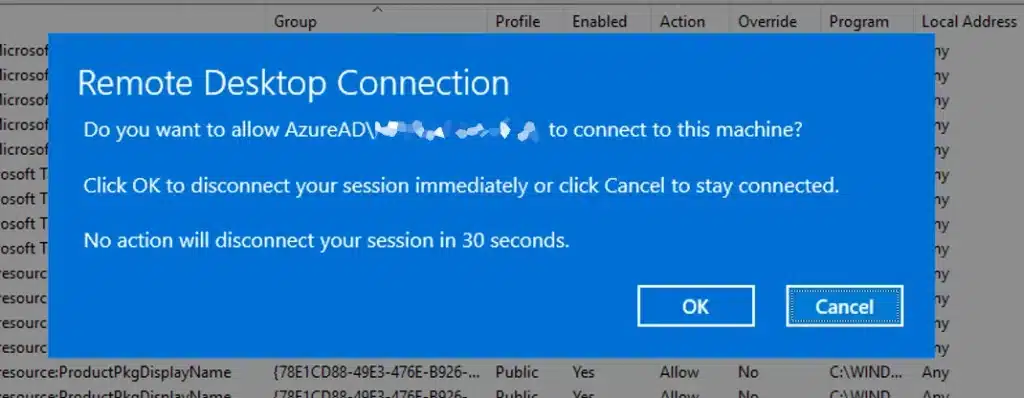
Doing nothing will disconnect you, and let the helper connect. That could often be the safest approach.
The helper gets the matching side of it at the sign-in screen: another user is signed in, continuing will disconnect them, sign in anyway.
Disconnect isn’t sign-out here, so the user’s session persists and they can reconnect to it. But they do lose their screen, and the wording on their prompt is a bit more concerning than the message’s framing of the session being locked rather than terminated.
This is also the second place the RDP underpinnings show through. That dialog isn’t Remote Help branding, it’s the same prompt Windows has shown for a console session takeover for twenty years.
The Conditional Access guidance
Now for the Conditional Access part I mentioned earlier, and the RemoteAssistance Service Principal.
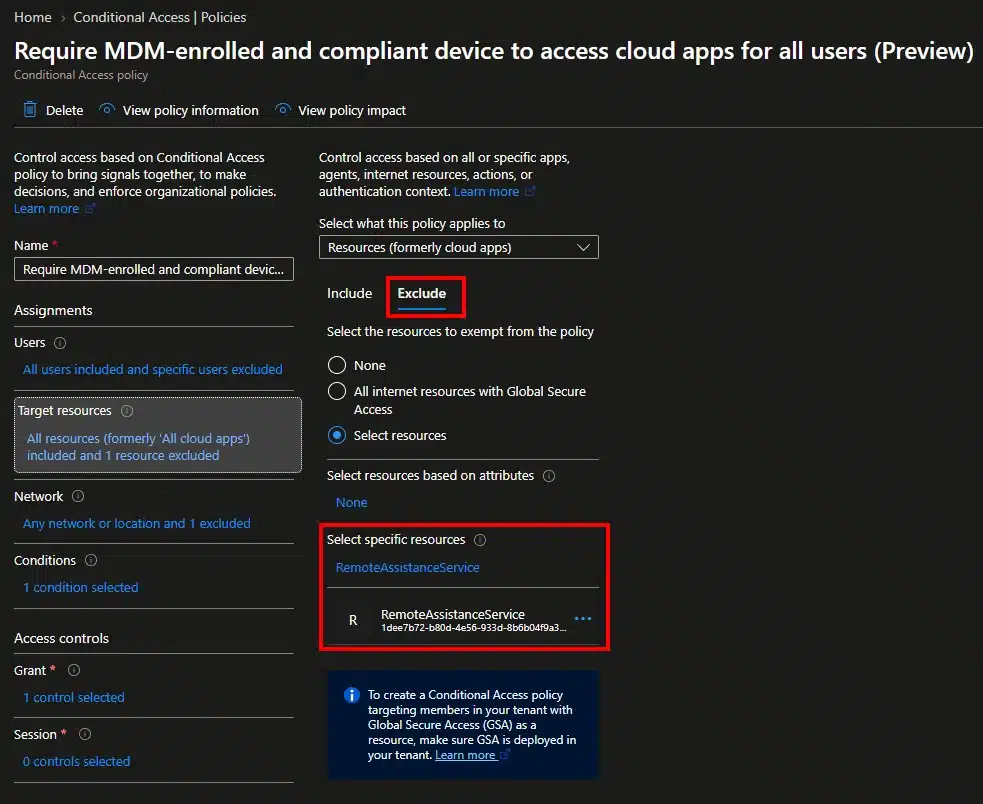
The deployment article has a section titled “Building a Conditional Access policy”. The steps under it are: open your policy, go to Target resources, select Resources, and then select Exclude, and pick RemoteAssistanceService.
Excluding a resource from a policy is how you make the policy not apply to it. So the section explaining how to apply Conditional Access to Remote Help is telling you to exempt Remote Help from Conditional Access.
Well, there is a reason behind it, and I think it’d been helpful if the documentation had said so. Both the helper and the sharer sign in to Remote Help with an Entra account from your org, and both of them sign in to the same resource. So a broad policy requiring a compliant device catches the end user too, and a user whose device has fallen out of compliance can’t authenticate to the tool that exists to fix devices that have fallen out of compliance. Excluding the resource makes that particular Catch 22 go away.
What makes it confusing is that the planning page says the opposite. Under planning considerations it tells you that helpers have elevated access into user devices, and that requiring MFA or compliant device status for helper accounts through Conditional Access is highly recommended. Which I totally agree with.
So one page tells you to protect helpers with Conditional Access, and the other tells you to exclude the resource that would do it. Neither page mentions the other, and neither explains how you’d actually do both. That’s the part I’d have liked spelled out, because it isn’t obvious.
Anyway, I tested it the other way round. My tenant runs Require compliant device for all resources (Preview), and I did not exclude RemoteAssistanceService from it. Unattended control connected and worked just fine (though as it turns out, not for the reason I assumed at the time…)
Then I forced the target device non-compliant and connected again. That worked too.
The second result is the one I think people will misread, so let’s be precise about it. Conditional Access on RemoteAssistanceService evaluates the helper’s sign-in to that resource. The target device isn’t doing an interactive sign-in against it at all, so its compliance state was never something the policy could act on in the first place.
Intune does read the target’s compliance state, it just does it somewhere else. Start a new remote assistance session against a non-compliant device and the portal drops a banner into the blade before you get to Continue:
The device you are connecting to is not compliant with your organization’s security policies. Please be cautious when entering or accessing sensitive information as the device may be compromised.
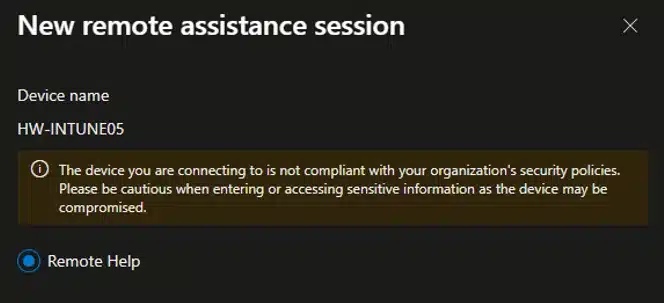
So you get told, but nothing stops you. The Android documentation actually says the same too: the warning doesn’t block access, it’s there so the helper thinks twice before typing administrative credentials into a machine that’s out of compliance due to whatever. Same reasoning should probably apply on Windows.
So there’s different elements in play here:
| Element | What it sees | What it does |
|---|---|---|
| Conditional Access | The helper’s sign-in and the helper’s device | Blocks |
| Remote Help | The target device’s compliance state | Warns |
And I’d say that’s the right split, because a device that’s fallen out of compliance is a pretty common reason to open a support session in the first place. Hard-blocking on target compliance would lock you out of exactly the machines you need to get into. Just don’t mistake the banner for a control – nothing stops a helper from clicking straight past it.
The helper side is a different story. I created an “impossible compliance” policy with “max version Windows 10”, and then signed in to HW-INTUNE05. That device soon became non-compliant. So when I signed in with the Intune Administrator and started Remote Help, authentication went through, MFA went through, and then the grant failed: Device must comply with your organization’s compliance requirements. No soup for you basically!
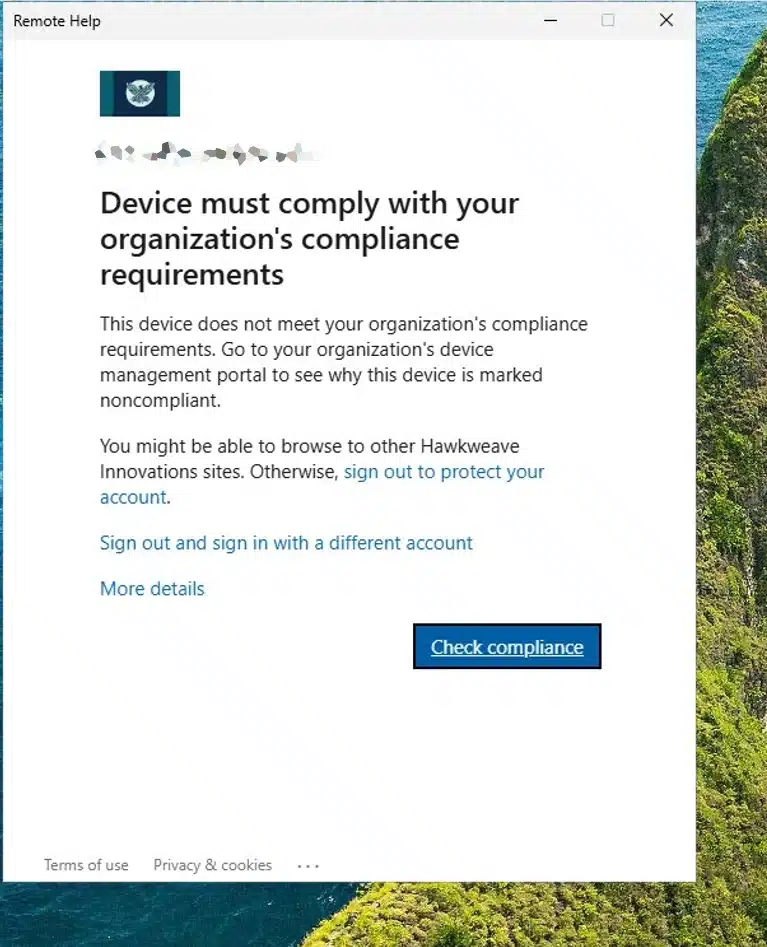
All in all, pretty helpful message. Standard representation of the WebView2 sign-in process. Pretty self-explanatory for someone on the service desk.
So RemoteAssistanceService is in scope, Conditional Access does evaluate it, and the block lands at the grant stage after authentication instead of failing silently somewhere in session setup.
The awkward part is that the exclusion applies to the whole policy. You can’t exclude RemoteAssistanceService for some users and keep it for others inside the same policy, so letting the end user (or sharer) through means taking it out of your baseline for everyone, helpers included. Which is why you can’t just follow both pages at once.
So you need two policies instead of one:
| Policy | Users | Resource | Grant |
|---|---|---|---|
| Broad baseline | All users | All resources, excluding RemoteAssistanceService | Require compliant device |
| Helper policy | Helpdesk group | RemoteAssistanceService | Require compliant device, phishing-resistant MFA |
Note: Currently working on updating the Conditional Access Simulator to make this easy to configure
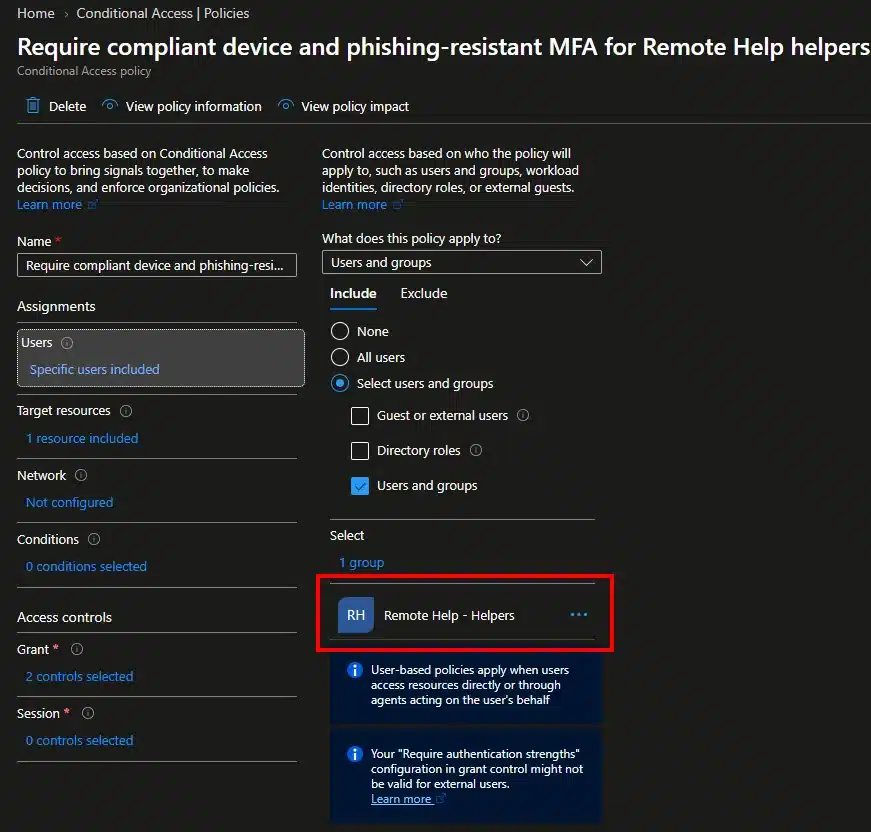
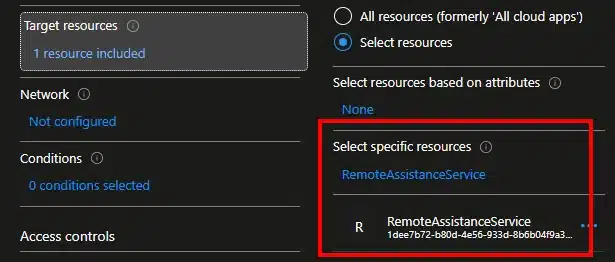
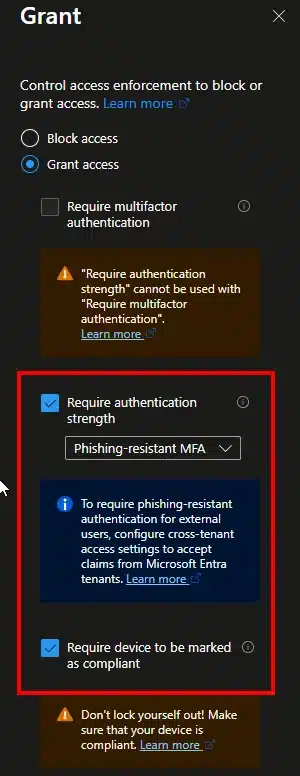
The end user still has a way to get support from a device that isn’t compliant. The helper doesn’t. User scope is doing the work here, and it works fine because you know who your helpers are, while your sharers are basically everyone in the tenant.
That covers the Remote Help app sign-in. Unattended turns out to take a different path entirely.
Note: The helper policy does not cover unattended control. Check the sign-in logs after an unattended session and there is no RemoteAssistanceService sign-in at all. The client is Windows App – Web and the target resource is Microsoft Graph, so a policy scoped to RemoteAssistanceService never sees it. In my tenant the session was gated by “Require MFA to access Azure Virtual Desktop for all users”, “Require multifactor authentication for admins” and “Require compliant or hybrid Azure AD joined device for admins”. None of those ask for phishing-resistant MFA. If you want the same bar on unattended sessions that the helper policy sets for attended ones, it has to come from a policy covering your admin accounts or All resources, not from the Remote Help app.
Note: Watch the targeting and group membership on that second policy. Once RemoteAssistanceService is out of the baseline, the helper policy is the only thing checking anything. A new person on the service desk who hasn’t been added to the group yet can start unattended sessions from any device at all and nothing in these two policies will stop them.
You can close that gap with a third policy on RemoteAssistanceService for all users with a lighter grant, say phishing-resistant MFA on its own. The helpdesk group still gets the compliant device requirement on top, and the sharer with a broken laptop still gets through. Although this still only covers the attended path. Three policies for one app is a bit much, but that’s what the exclusion leaves you with.
One more thing to keep in mind: your helpdesk people are end users as well. If they’re in the helper group, that compliant device requirement follows them around, so the day their own laptop goes non-compliant they’re locked out of Remote Help just like everyone else. Not a big deal, but someone will probably open a ticket eventually…
Diagnostic Note: Compliance state changes take a while to reach Conditional Access, and an existing token can carry a session through in the meantime. So if a session works when you expected it to be blocked, check the Entra sign-in log entry for RemoteAssistanceService after an attended session and see whether the policy shows as applied, satisfied or not applied before you conclude anything.
Wrapping it up
The packaging, the RDP policy, and the service principal are all fine once you know what they’re doing. None of them are the big issues they look like at first glance.
The Conditional Access part is the one I’d wish they wrote differently. Not because the advice is wrong, but because it splits between two pages that don’t reference or even acknowledge each other. The planning page tells you to protect helper accounts with Conditional Access. The deployment page tells you to exclude the resource. Both are reasonable on their own, and following just the deployment article leaves the attended path outside your compliance policy, and the unattended path relying on whatever your admin policies happen to require.
So the controls are on who can start a session, not on which devices can receive one. Remote Help will warn a helper before they connect to a noncompliant endpoint, but warning is all it does. And that’s probably the way it should be.
A couple of other things from the Planning Notes: it states that “physical” devices only are supported, but clearly Virtual Machines work fine. I guess it’s a support statement rather than a technical limit, given they say Windows 365 and AVD are coming. Sessions also max out at 12 hours and then disconnect, not configurable (even helpers need sleep).
Last little thing I’d tell Service Desk maybe would be to calm the user down and not to be afraid of the 30-second countdown, because they don’t lose their session or opened documents (unless the helper has to reboot the device or something).
Let me know if any of you have tested Unattended access yet, and if you have any cool or interesting stories to share.



Has anyone tested Unattended with AVD or Windows 365 clients, the Microsoft literature seems to imply it doesn’t work, but I can’t see why not. Going to try and test in on our tenant tomorrow!
That’s a good experiment – if I remember it right they say “physical devices only”, but of course it works on a VM so I think it’s their way of saying “not a device that’s already an AVD session host”.
Since Unattended controls needs the AVD agent and the bootloader I suspect that the broker can’t do both. Meaning both be an AVD _and_ the Unattended host at the same time – but I haven’t tried it so would love to hear how it worked out?