

For all of you that’s been waiting for Hybrid Join to come to Entra Cloud Sync, the wait is over (as of July 2026). It can now sync AD computer objects to Entra ID. It’s in Preview, and it’s pretty easy to set up.
Anyway, depending on the existing AD structure and GPO policies you have set up, things described below might behave slightly different.
Why I was looking at this
I’ve had multiple lab setups over the years, and certainly hybrid join has been a part of that setup earlier using Azure AD Connect (now Entra Connect).
But the need hasn’t been there since working mostly with Intune. And it’s been a benefit to have pure AD-joined clients as well, to be able to work on some “isolated network” scenarios once in a while.
I’ve also managed to avoid running two sync services alongside each other, which would have been tempting if I really needed hybrid join. Now with this preview I don’t have to consider that anymore, and just use Cloud Sync.
The clients in question are the same domain-joined machines I set up in Getting Domain-Joined Clients into ConfigMgr, which are now co-managed and were the whole reason I wanted hybrid join in the first place.
Follow along in this post to set it up quickly according to the official Microsoft docs found here.
Prerequisites
There are only a couple of things to check before you start.
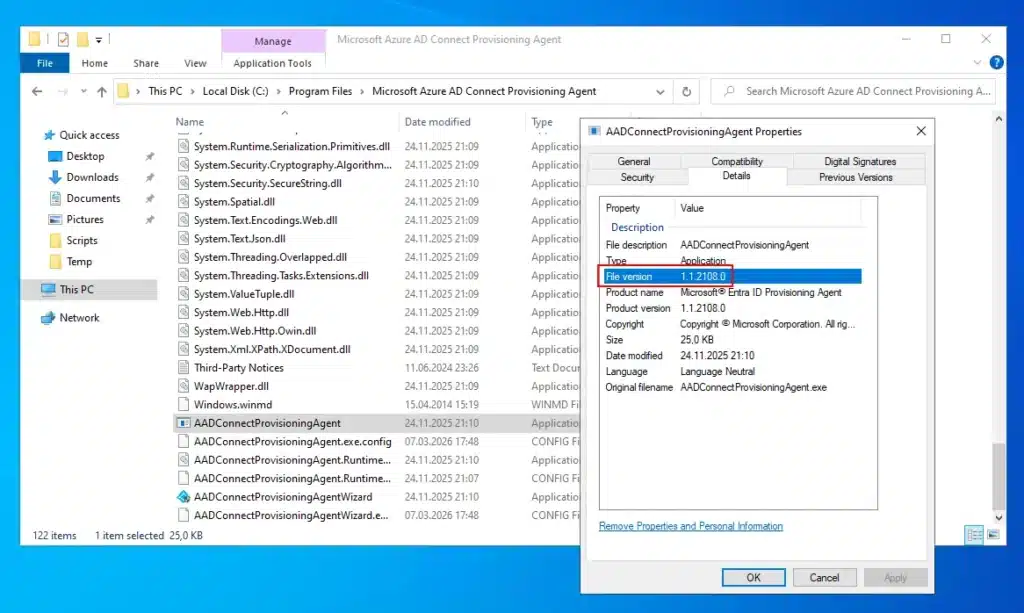
- Provisioning agent version 1.1.1107 or later.
- An existing AD to Microsoft Entra ID Cloud Sync configuration. Device sync is a setting on that configuration, not a new one.
- Enterprise Admin rights for the service connection point, Hybrid Identity Administrator for the portal.
Configuring the service connection point
The SCP is what tells your domain-joined devices which tenant to register with. It lives in the configuration partition of the forest, and it’s the same SCP hybrid join has always used, so if you’ve done this before with Entra Connect there’s nothing new here.
Microsoft ships a ConfigureSCP.ps1 script in the device sync documentation. It writes two keyword values into the SCP object, azureADName for the domain and azureADId for the tenant GUID.
As there were some problems getting this particular script rendered using WordPress, I went ahead and published it in Gist here just in case: https://gist.github.com/haakonwibe/b06654e2ecdde639493fe6ec05edc93e.js
Run it with:
.\ConfigureSCP.ps1 -Domain -TenantIdWhich domain you should pass is a bit unclear. The docs on Learn and the parameter comment both tell you to use a federated domain if you’re federated, and the primary *.onmicrosoft.com domain if you’re not. But the usage examples in the script header show contoso.com and contoso.onmicrosoft.com next to each other as if either one is fine.
I went with my verified custom domain in a managed tenant, and discovery worked without complaint. dsregcmd reported DRS Discovery Test : PASS and the client moved on to the join phase. If you’d rather follow the documentation than the examples, use the initial domain.
Note: If there’s already an SCP in the forest, this script clears the existing
keywordsvalues and writes new ones. Record what’s there first. In a forest that’s been around for a while, an SCP still pointing at some abandoned pilot tenant is entirely possible.
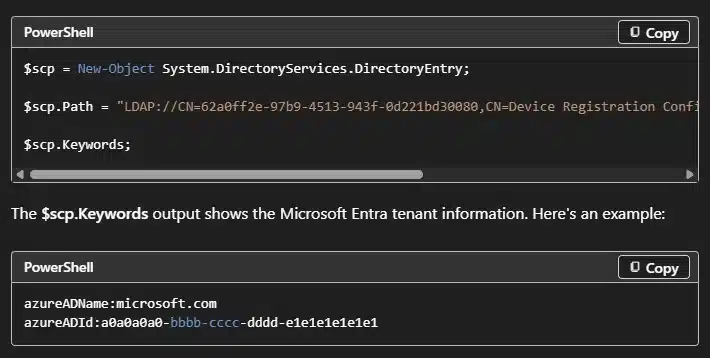
You can read the values back like this (from the Microsoft Learn pages here):
Enabling device sync
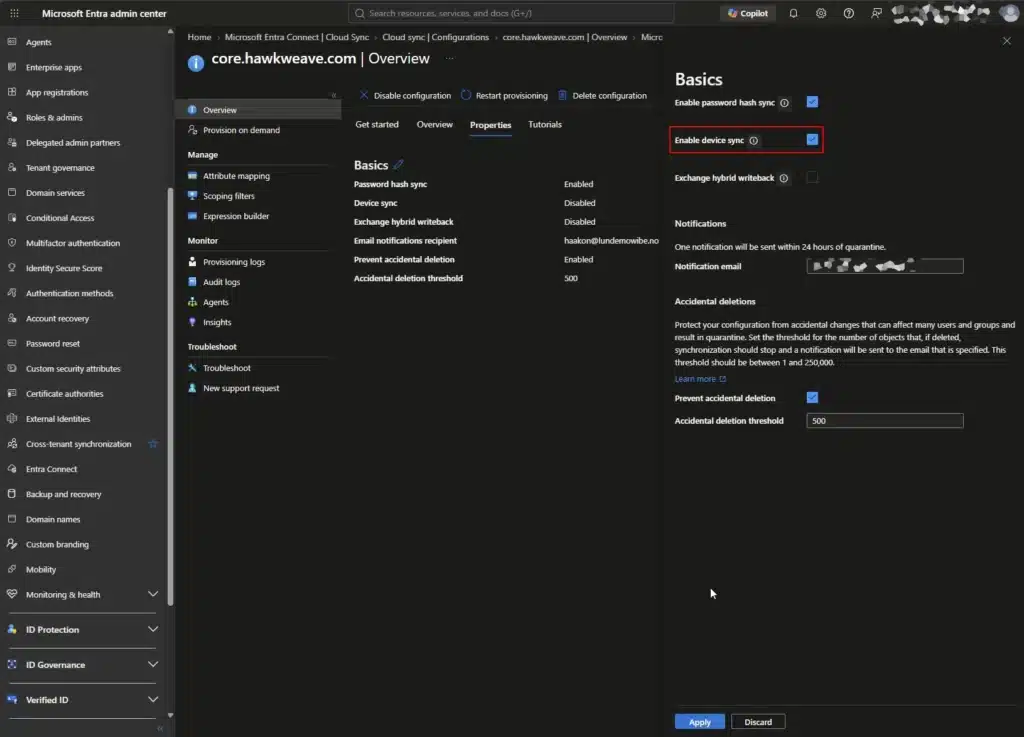
This part really is just one toggle. Go to Entra admin center > Entra ID > Entra Connect > Cloud sync, pick your configuration, and open Properties. Under Basics you’ll see device sync sitting at Disabled. Edit it, select Enable device sync, and apply.
Updating the scoping filters
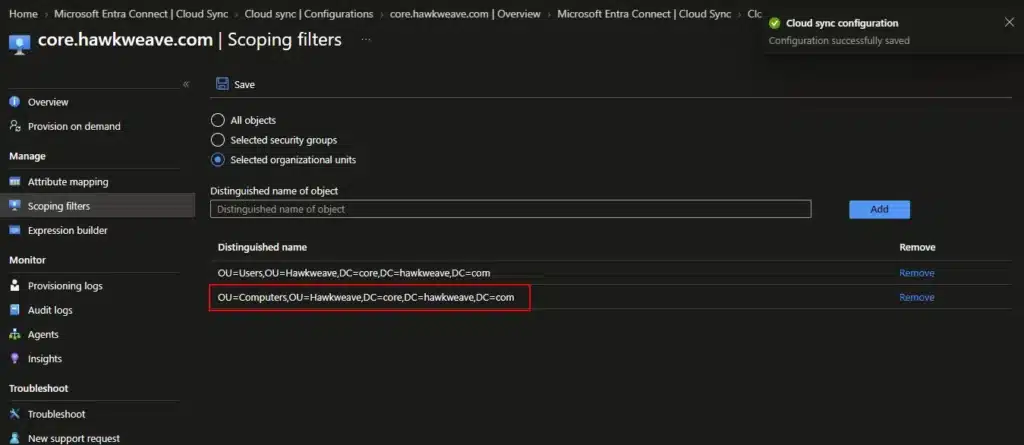
Device sync uses the scoping filters already on the configuration. Therefore you might get a notice that they need updating to cover the new object types in scope:

If you’ve just synced users before, you might have something like OU=Users,OU=Hawkweave, and computer objects will be outside of that scope.
Add the OU your computers are placed in to prepare for sync to succeed:
Triggering registration on the client
The scheduled task that does the registration is already on every domain-joined machine, but it won’t do anything until policy tells it to. Enable Register domain joined computers as devices under Computer Configuration > Policies > Administrative Templates > Windows Components > Device Registration.
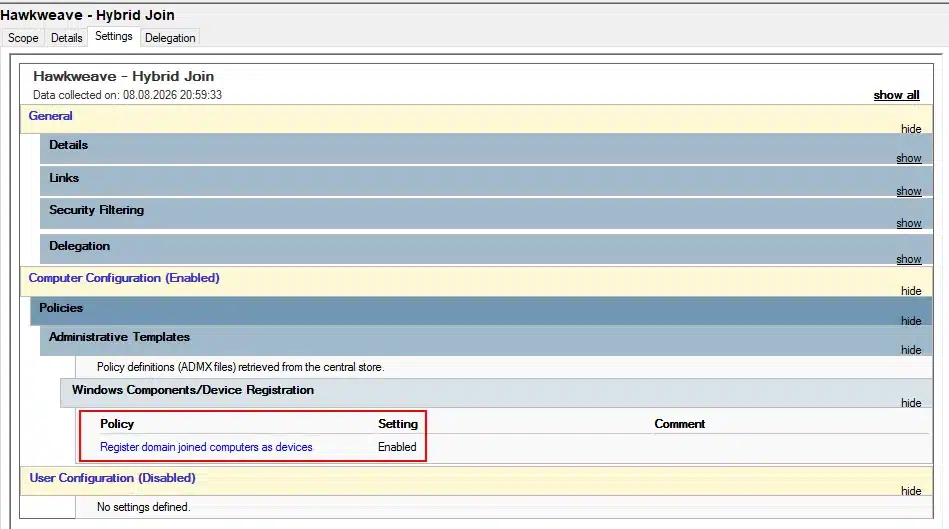
In a lab you’ll probably want to run it yourself rather than wait around:
gpupdate /force
schtasks /run /tn "\Microsoft\Windows\Workplace Join\Automatic-Device-Join"
dsregcmd /status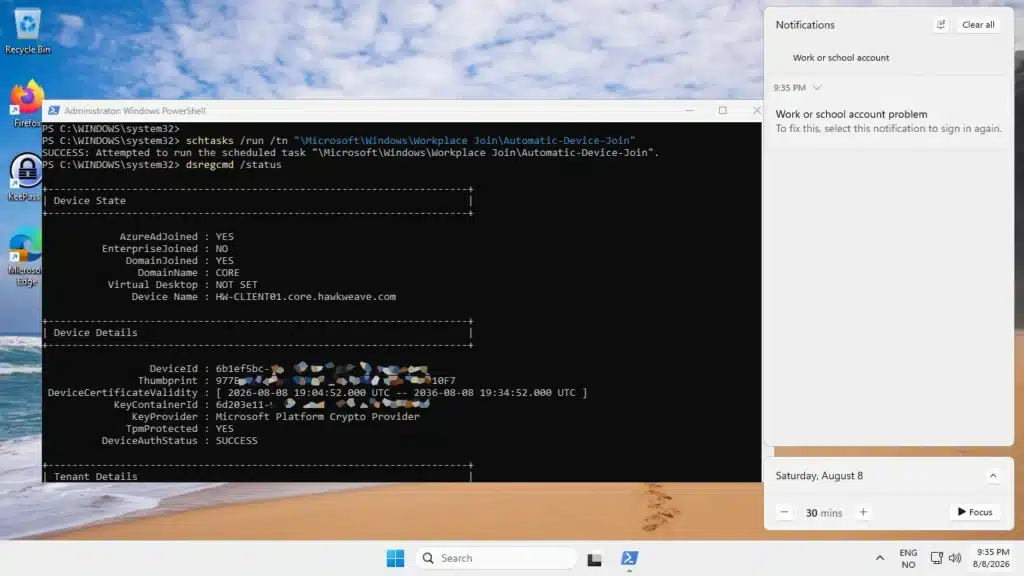
The provisioning order
Here’s where I had some issues with some clients that hadn’t been configured for this at all, but it all lined up swimmingly when the clients got the GPO from the start.
The order the sync is performed in is kind of the opposite of what I expected though. Cloud Sync doesn’t create the device object and then let the client register against it. The client has to attempt registration first, because that attempt is what writes a self-signed certificate into the AD computer object, and userCertificate is one of the nine attributes device sync maps.
On a client with no registration attempt behind it, provision on demand gets through import, scope and matching, then stops at the fourth stage:
SkipReason : JoinNotFound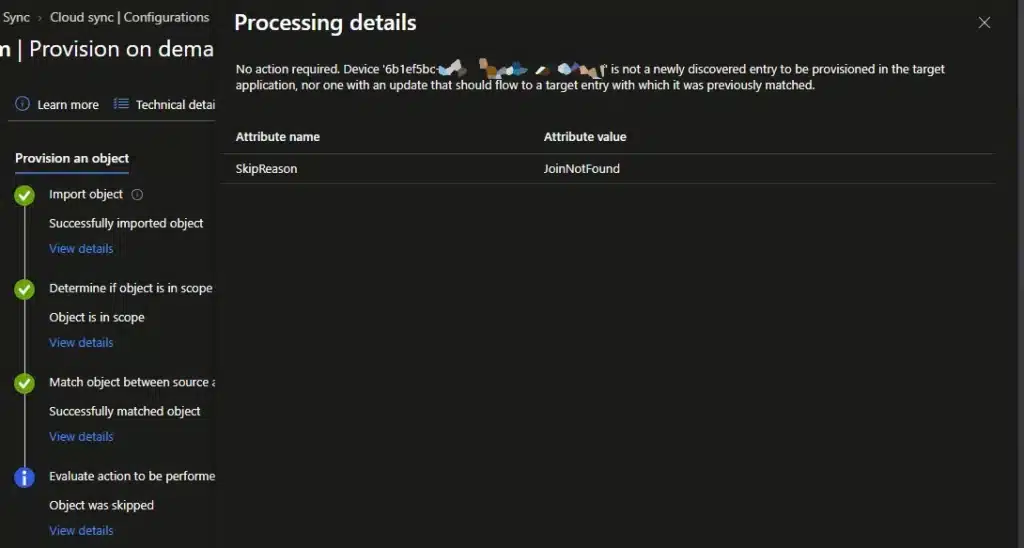
That value doesn’t appear in the documentation anywhere I could find. Running the task at that point gives you a matching failure on the client side:
        DRS Discovery Test : PASS
     DRS Connectivity Test : PASS
     Fallback to Sync-Join : ENABLED
         Registration Type : fallback_sync
               Error Phase : join
          Server ErrorCode : invalid_request
       Server ErrorSubCode : error_missing_device
          Server Operation : DeviceRenew
            Server Message : The device object by the given id (...) is not found.
Everything up to the join works. The client finds the tenant, reaches the Device Registration Service, falls back to sync-join the way it should in a managed domain, and then fails because the object it wants in Entra isn’t there yet.
That failed attempt writes the certificate, the next sync exports the device, and the following registration succeeds.
If your clients already have the GPO applied, this isn’t really an issue. My other client had picked up policy and attempted registration on its own before I got to it, so by the time the sync job looked at the object there was already a certificate on it and provisioning went straight through. HW-CLIENT02 went from nothing to joined on the first attempt:
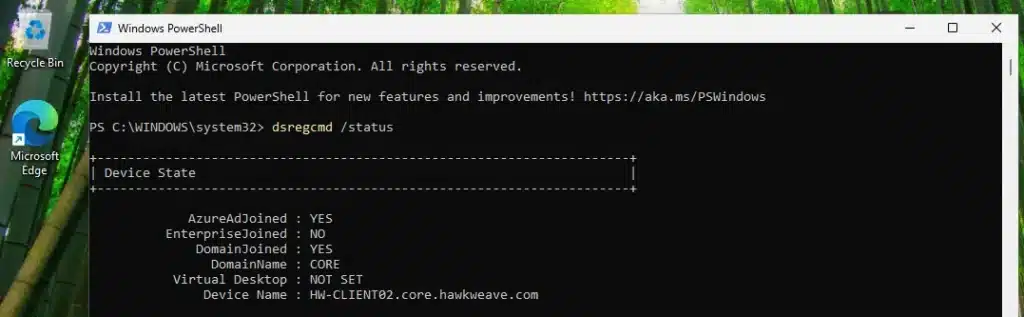
One other thing is that dsregcmd /status doesn’t retry anything. It just reads the current (cached) state and re-running it just shows the same failure. Only the scheduled task actually retries.
What gets synchronized
Nine attributes, a couple of which are more important than the others.
| Entra attribute | AD attribute | Mapping type |
|---|---|---|
AccountEnabled | userAccountControl | Expression |
DeviceId | objectGUID | Direct |
DeviceOSType | operatingSystem | Expression |
DeviceTrustType | None, always ServerAd | Expression |
DisplayName | displayName, dNSHostName | Expression |
OnPremiseSecurityIdentifier | objectSid | Direct |
RegisteredOwnerReference | mS-DS-CreatorSID | Once |
SourceAnchor | objectGUID | Direct |
UserCertificate | userCertificate | Direct |
DeviceTrustType is hardcoded to ServerAd, so everything this job creates is hybrid joined. There’s no setting to go looking for.
RegisteredOwnerReference has a mapping type of Once, applied the first time Cloud Sync finds the computer object and then never again. If you’re rebuilding the same test machine over and over, that’s the one that will give you results you can’t explain.
DisplayName comes across as the computer account name with the trailing dollar sign, which is standard AD. Once the client finishes registering, the Device Registration Service takes over the object and it shows up under the plain hostname instead.
Provisioning a single device on demand
Waiting around for a sync cycle to prove something works is a waste of lab time. Provision on demand sits under the configuration, and there’s a Device tab next to the User tab that’s very easy to walk straight past (I did once):
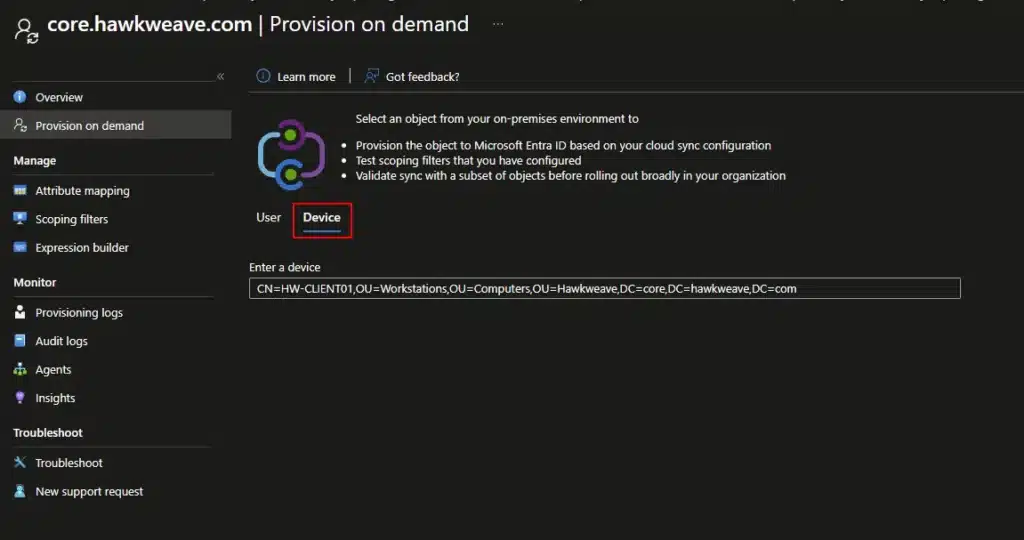
Give it the distinguished name of the computer object and it processes that one immediately.
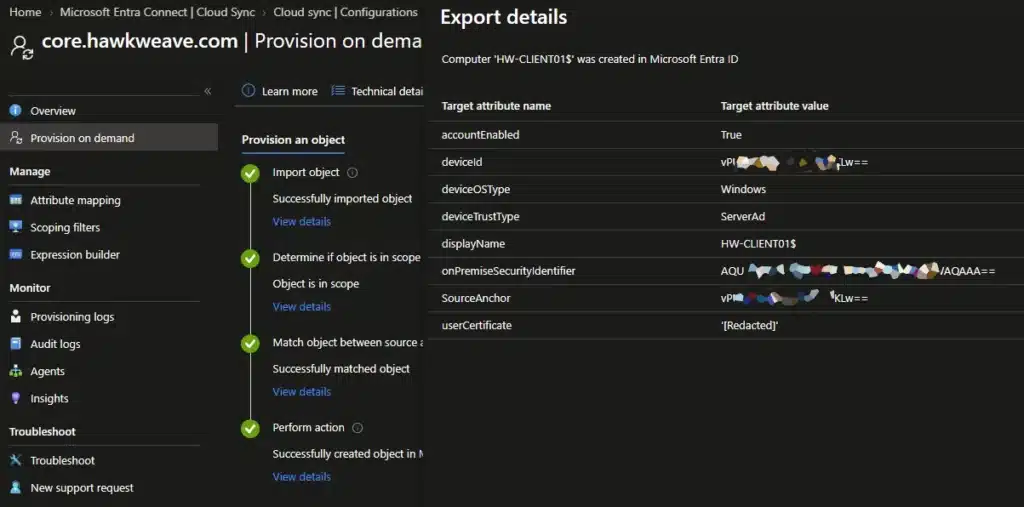
If you’d rather do it in Graph: pull the synchronization schema for the device sync job, take the rule ID out of synchronizationRules, then call provisionOnDemand with objectTypeName set to computer and the DN as objectId. You can also create the job entirely in Graph by creating a synchronizationJob against the AD to Entra ID service principal with templateId set to AD2AADDeviceSync, then starting it.
Deleting and recovering devices
The Provisioning logs under Monitor are where all of this becomes visible after the fact. Each row gives you the action, the source and target system, and the identity it matched.
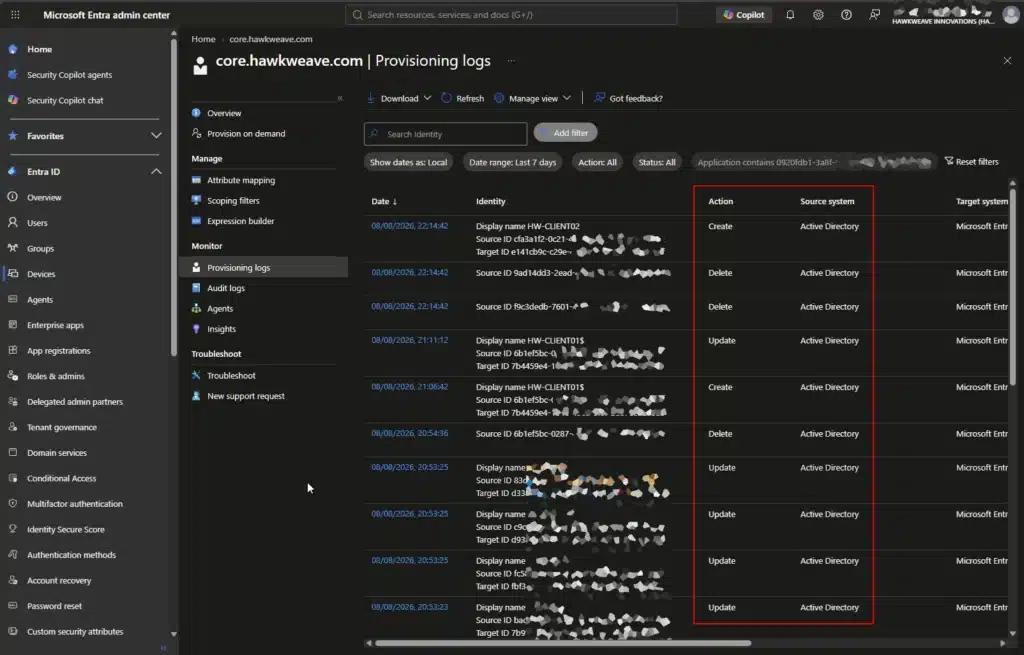
Deletions work the way you’d expect basically. I had a couple of stale computer objects left over from VMs I’d removed earlier, and both device objects disappeared from Entra in the same run that created the new one.
It doesn’t work in reverse though. If something other than Cloud Sync removed the device, whether that’s dsregcmd /leave on the client or an admin deleting it in the portal, Cloud Sync won’t put it back on the next cycle. It sits there waiting for the AD object to change.
You’ve got three ways back: restore it from Entra ID > Devices > Deleted devices, touch the AD computer object and wait for a cycle, or just provision on demand. You’ll probably have asset management somewhere else in a production environment anyway, but in a lab you can just script it.
The other option: hybrid join via Entra Kerberos
Device sync isn’t the only way off Connect Sync. Microsoft also released hybrid join via Microsoft Entra Kerberos in public preview back in February 2026. That one is client-initiated and doesn’t sync device objects at all, so the sync cycle dependency goes away entirely. The use cases they mention are non-persistent VDI and organizations that want to stay on Cloud Sync.
I went with device sync because it behaves like the model I already know from Entra Connect. When something failed I wanted to be reasonably sure I was debugging the thing I was actually testing.
Caveats
It’s preview. Supplemental preview terms, so no SLA and no support commitment.
Cloud Sync and Connect Sync must never manage the same objects. One engine per object. If you’re running both through a transition, the scoping needs to be airtight.
The SCP is forest-wide. It affects every domain-joined machine in the forest, not just what’s in your Cloud Sync scope.
Check your own sync intervals. Mine reports 20 minutes for users and groups and for devices, with password hash sync at 5. Cloud Sync gets described as running every couple of minutes in comparisons against Connect Sync’s 30 minute default, which isn’t what my Overview panel says. Read the three schedules off your own configuration.
What’s your experience with Cloud Sync? Let me know in the comments, or on social media 🙂