

Updated 23 October 2026: added the two other locations the Preferences file can live in on Windows, plus macOS and Linux paths. Corrected the section on checking the dictionary. Details at the bottom.
If you write in anything other than US English, Claude Desktop underlines half of what you type. Norwegian, German, Swedish, doesn’t matter. Everything gets a red squiggle.
The popular fix on GitHub is to switch spellcheck off. That works, but you lose typo detection in English too. There’s a better option hiding in the same file.
Two dictionaries, not zero
Claude Desktop is an Electron app, which means Chromium underneath. Chromium supports several active dictionaries at once, and it only flags a word that’s missing from all of them.
So the fix is to add your language next to en-US, not to remove spellcheck.
The edit
- Fully exit Claude Desktop. Close the window, then quit from the tray icon too.
- Open the
Preferencesfile. On Windows it’s usually%APPDATA%\Claude\Preferences, but not always. See the next section if it isn’t there. It’s JSON with no file extension and no line breaks. Don’t add.jsonto the name. - Find the
spellcheckobject and set:
"spellcheck": { "dictionaries": ["en-US", "nb"], "dictionary": "" }- Make sure
browser.enable_spellcheckingistrue, in case you tried the other workaround earlier. - Start Claude and type some Norwegian.
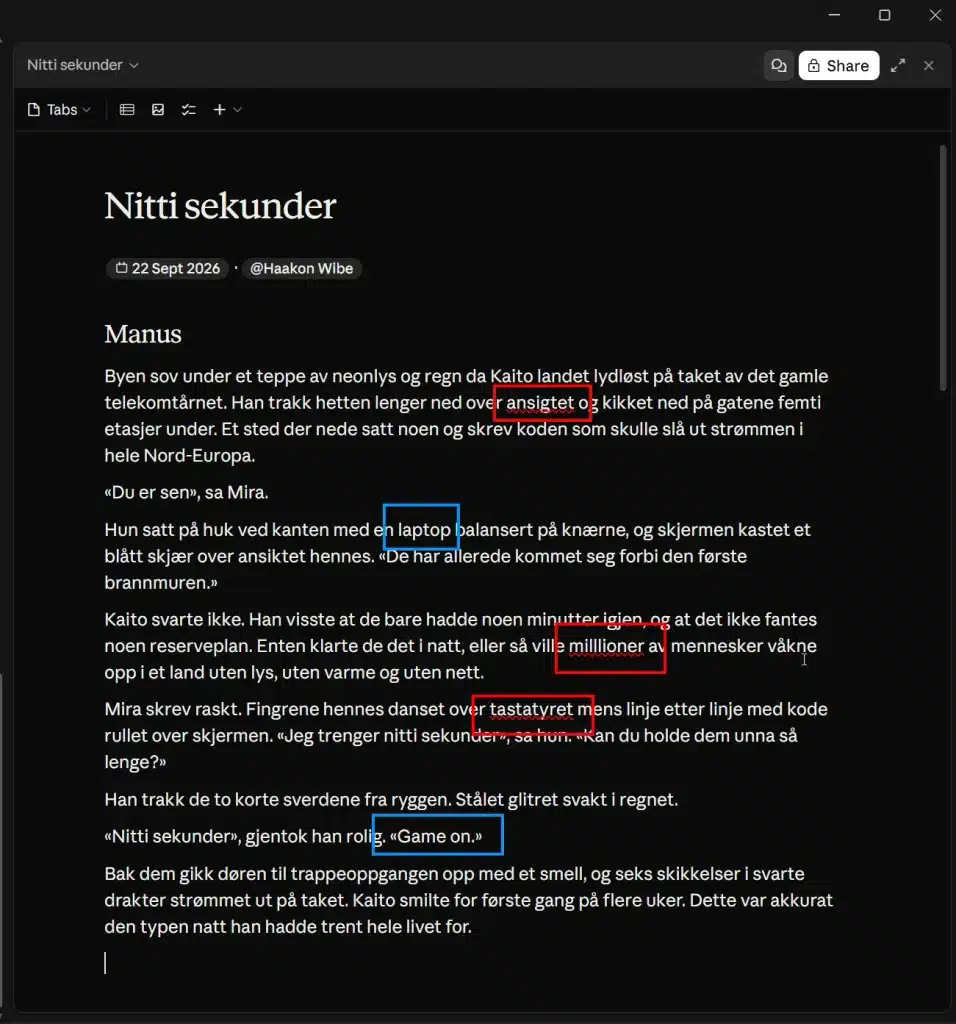
I don’t always write Norwegian short stories about cyber-ninjas. But when I do, it’s for a spellcheck screenshot.
Use nb for Bokmål, not nb-NO. Chromium matches against its own list of language codes, and OS locale names can be silently ignored. There’s no Nynorsk dictionary, unfortunately.
Can’t find the Preferences file?
This is the mystery: on Windows the profile can sit in three different places:
%APPDATA%\Claude\
%LOCALAPPDATA%\Packages\Claude_<hash>\LocalCache\Roaming\Claude\
%LOCALAPPDATA%\Claude-Data\claude_<suffix>\
The second is MSIX filesystem redirection. The third is where newer builds move the profile, leaving an empty marker file named .user-data-left.claude_ behind in the old location.
But there’s a catch, a stale Preferences file can survive in the old spot after the move. Edit that one and absolutely nothing happens, with no error to tell you why.
This finds every copy and flags the orphans:
$roots = @(
    "$env:APPDATA\Claude"
    Get-ChildItem "$env:LOCALAPPDATA\Packages" -Directory -Filter "Claude_*" -EA SilentlyContinue |
        ForEach-Object { "$($_.FullName)\LocalCache\Roaming\Claude" }
    Get-ChildItem "$env:LOCALAPPDATA\Claude-Data" -Directory -EA SilentlyContinue |
        ForEach-Object { $_.FullName }
)

$roots | Where-Object { Test-Path "$_\Preferences" } | ForEach-Object {
    [pscustomobject]@{
        Path     = "$_\Preferences"
        Modified = (Get-Item "$_\Preferences").LastWriteTime
        Orphaned = [bool](Get-ChildItem $_ -Filter '.user-data-left.*' -Force -EA SilentlyContinue)
    }
} | Sort-Object Modified -Descending | Format-Table -AutoSize
Edit the newest one that isn’t marked as orphaned. Still unsure which is live? Start Claude, close it, run the snippet again. The real profile is the one whose timestamp just moved.
Other platforms, both confirmed in the GitHub thread:
| OS | Path |
|---|---|
| macOS | ~/Library/Application Support/Claude/Preferences |
| Linux | ~/.config/Claude/Preferences |
On macOS, open it with Go > Go to Folder in Finder. Same warning applies: don’t let TextEdit add an extension.
Why the edit “keeps reverting”
Several people in the issue reported that their change disappeared after a while, without a restart. That’s Chromium’s pref store doing its job.
At launch, the app loads Preferences into memory and writes it back to disk periodically. Edit the file while the app is running and your change gets overwritten on the next flush. The app isn’t enforcing en-US. You’re just racing it.
Exit first, edit second, and it sticks.
Which spellchecker is actually running
Chromium picks one of two at runtime, and it changes what you should expect to see.
If Windows has the Basic typing component installed for your language (Settings > Time & language > Language & region > the three dots next to your language > Language options), Chromium uses the Windows spellchecker. Nothing gets downloaded, and no Dictionaries folder ever appears. That’s normal, not a failure.
Without that component, Chromium falls back to Hunspell and fetches its own dictionary:
powershell
Get-ChildItem "<your profile path>\Dictionaries"A file like nb-3-0.bdic means the download worked.
So: empty folder but spellcheck behaves correctly means Windows is doing the work and there’s nothing to fix. Only suspect a blocked download if the folder is empty and your language is still being flagged. (I described this the wrong way unfortunately in the first version of this post.)
One warning if you script this
I automated the edit with PowerShell and stopped the app with Get-Process claude | Stop-Process. That killed every Claude Code session I had open too, because the Claude Code CLI is also claude.exe.
Check what you’re about to kill before you kill it:
powershell
Get-Process claude -EA SilentlyContinue | Select-Object Id, PathThen filter on the desktop app’s path specifically. Mine lives under %LOCALAPPDATA%\AnthropicClaude\, but an MSIX install puts it somewhere else entirely, which is the whole theme of this post.
(Your sessions aren’t lost if you make the same mistake. claude --resume brings them back.)
Beyond Claude
Plenty of Electron apps keep the same Chromium Preferences file with the same spellcheck.dictionaries key. If another desktop app insists on en-US, go looking for its profile folder before assuming there’s no fix. Just be ready for it to not be where you expect.
The workaround is documented in the original GitHub issue, which has since been updated: https://github.com/anthropics/claude-code/issues/58693